Intro
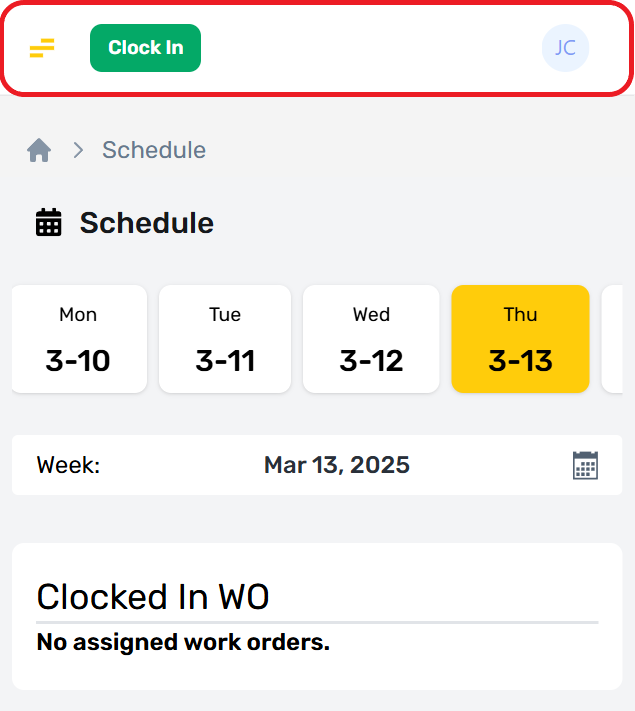
The system header provides a global set of options that are always visible regardless of where a user is located in ProfitOps. The header provides access to additional modules, clock management, and account details, allowing users to see where they are, what they are doing, and who they are currently logged in as.
Module Menu
The module menu control is located at the far right of the header. On mobile devices, this menu will be collapsed by default and is opened by selecting the menu icon.
.png)
Accessible Modules
All accessible modules are shown in the module menu, which will hide modules that a user does not have permission to see. This view shows all the modules available in the system.
.png)
Module Views
Each module represents a dedicated set of tools that may be divided into additional specialized views.
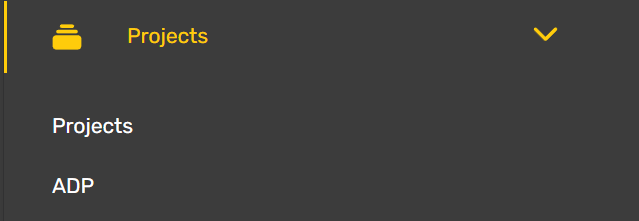
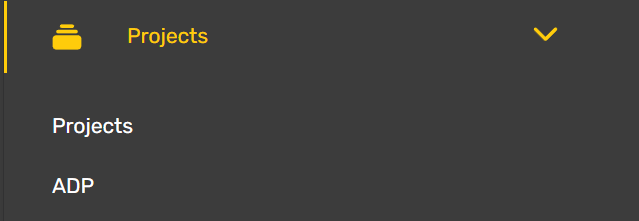
For example, the Projects module offers two views:
Projects - which allows users to see related projects.
ADP - Which allows users to see only area details proposals.
Views & Permissions
These two views are both part of the project’s module but are optimized for different roles. Certain modules, or module views, will not appear unless the user has permission to access them. Some functions within a module are only available to users with specific permissions and under specific conditions.
For example, the Schedule Module is available to all users:
Crew users can only see work orders they have been assigned to.
Only current work orders can be viewed.
These work orders are removed once they are completed or expired.
List of All Available Modules
For Module Menu Issues
The module menu is dynamic and will change based on user permission. If a module you need does not appear, contact your supervisor or a system administrator to have this resolved.
Schedule
The schedule modules handle the current day’s work on a per user basis. Users can view, clock in, and navigate all work they are assigned or responsible for.

Calendar
A high-level planning tool for Project Managers and Operations users. This shows all work, events, labor, weather, and crew schedules for a variety of selectable intervals ranging from the current day to an entire month.

Projects
The projects module handles the fine details for planning each project and service requested by customers. This module handles the creation and provisioning of work orders necessary to complete each assigned service.
Manpower
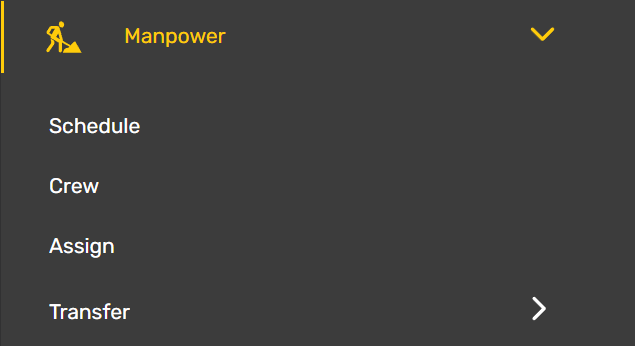
The manpower module handles the high-level assignment of fleet and labor to work orders created in the project’s module. Users can see all work orders requiring attention, and can assign crews, fleet vehicles, or individuals to their completion from a dynamic menu that helps manage the availability and workload for each asset involved.
PM Check Out
This specialized module helps project managers audit and approve each individual work order completed by crews in the field. It provides specialized tools to accommodate issues and make necessary adjustments before the work order is closed.

Customers
The Customers module stores all information about each customer that has requested or received services. It tracks and manages the relationship with each customer over time, allowing users to associate specific contacts and subsidiary companies with specific customers, and track all work done for them over time.

Contacts
The contacts module handles the personal and professional contact information for all individuals that they system needs to interact with. This information can be associated with Customers, Subcontractors, or other utility needs, allowing users to access specific external or internal persons that may be needed.

Subcontractors
The Subcontractors module handles all the details and legal information for authorized subcontractors which can be used to perform specific services. This includes the tracking of permits, licenses, and a history of past work.

Fleet/Equipment
The Fleet/Equipment module tracks all aspects of essential mechanical assets on and off the road. This includes current location, the size and type of materials it can store or dispense, reported issues from operators, and essential licensing info.

HR Links
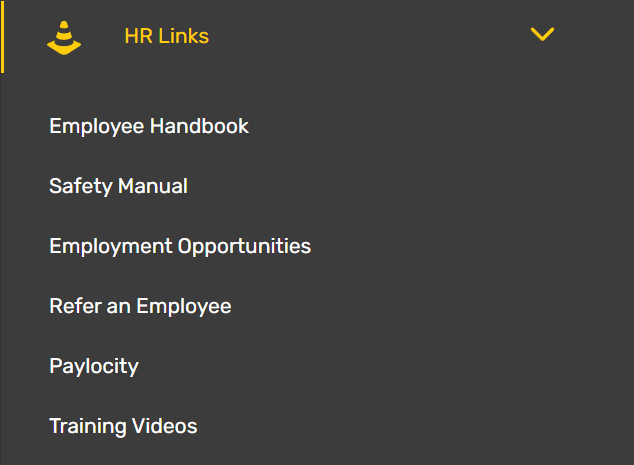
HR links deal with routine automated HR requests, and other web portals necessary for any user of the system. This allows easy access to healthcare, payroll, training information, and company manuals.
TCA
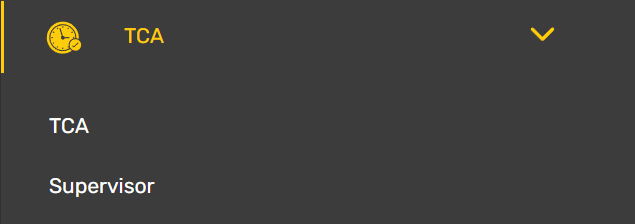
Sort for TimeCard Approval, the TCA is an auditing tool for HR personnel to review and provide final approval on all labor hours logged by users of the system. It provides a full audit trail showing who created a time punch, and the approval of this time by each related supervisor.
HR
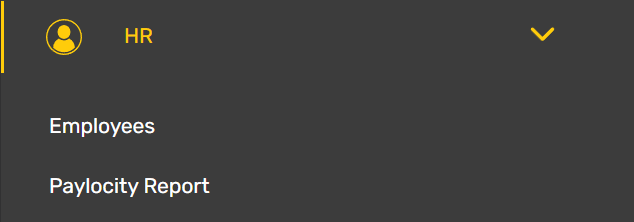
The HR module handles the storage of employee data, the tracking in individual labor time, and reporting of key payroll information. Users can see all employees, audit their permissions, update location or contact information, and reset user passwords.
Timecard
The Timecard is a quick reference module that allows any user to view their labor hours and see the status of disputed labor time.

Announcement
The announcements module handles one-way internal communication between administrators and other users of the system. Announcements can be targeted to specific users based on their attributes or sent to all users. These messages record when they are viewed by their targets, which can be viewed in a report available to the sender.

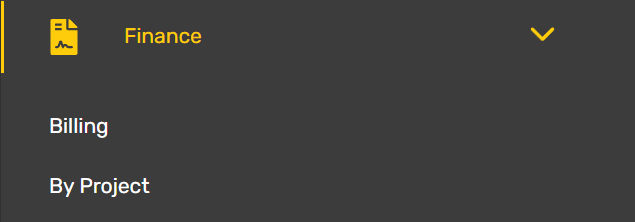
Finance
The finance module deals with all billing and accounts receivable. It tracks payments outstanding, as well as providing information on recently completed work that is ready to be invoiced to a customer.
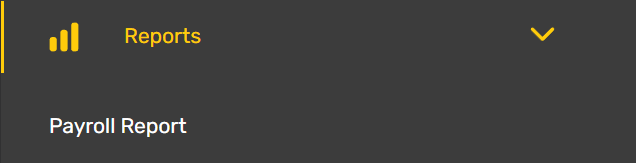
Reports
The reports module monitors various aspects of the system and will generate automated reports for a variety of selectable intervals. This information is pulled directly from the system’s local database, allowing users access to near real time information when required.
Materials
[Need Info]
.png)
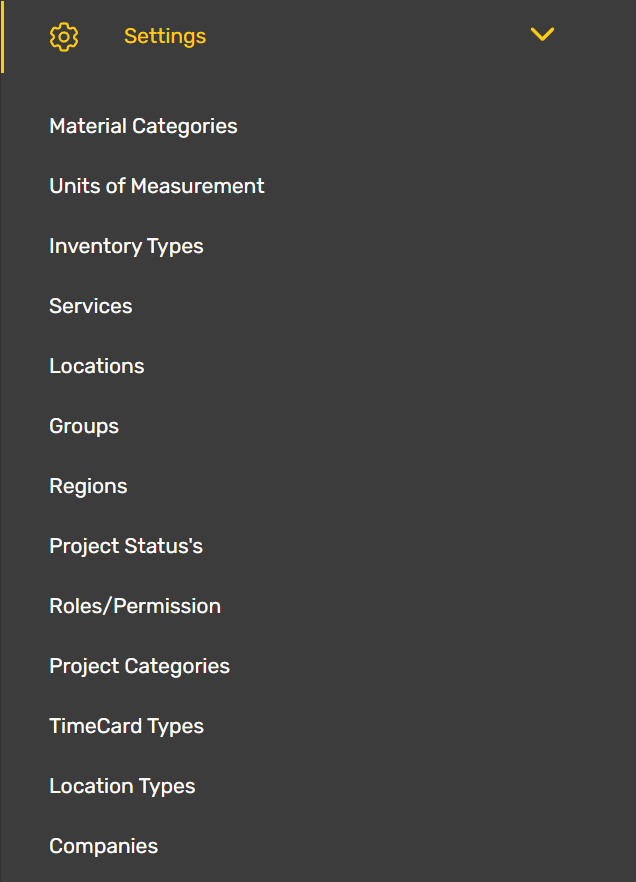
Settings
[Need Info]
Travel/MOB
Travel/MOB deals with the mobilization of personal between various work locations, where overnight stay is required. Users can see flight information, or driver assignments for different fleet vehicles.

Trips
The trips module coordinates the logistical routes for delivery of materials. It allows commercial drivers to see what routes they have been assigned to drive, pickup and delivery deadlines, and access paperwork required to complete a route.
[Image Not Available]
Performance
The performance module provides insight into the performance of individuals and work crews on each work order, and over time. It allows users to see how profitable a given service was, how effectively resources were used, and identify potential waste in their allocation.

Inventory
The inventory module handles tracking of non-material items used to complete work. Things like tape, water, rags, and uniforms can be monitored and alerts sent when more of these expendable resources are needed.

The Clock Pill
The Clock Pill sits next to the module menu on the system header, and acts as both an indicator and menu, depending on the current activity and permission of the user.

Clock In Options
Users are clocked out by default and must either select a Work Order to start logging time or select from a set of non-work order options that are displayed when the clock pill is selected. These options will vary based on what a user is authorized to use, but will typically contain options for Yard Work, MOB, and Training.
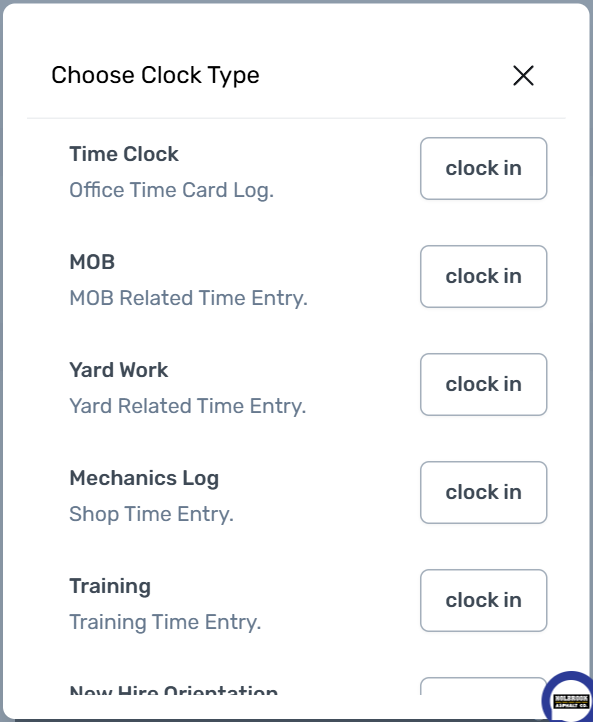
Clock types should only be used when directed by a supervisor, who will be notified when users they are responsible for access these options.
While Clocked In
While clocked in to any activity, the clock pill will display the current time logged to that activity. The clock pill will not show the total time logged for the current day, that information is available in the timecard module, which is covered separately.

For additional details about clocking into or switching work orders see the Clock In & Out documentation.
Account Management
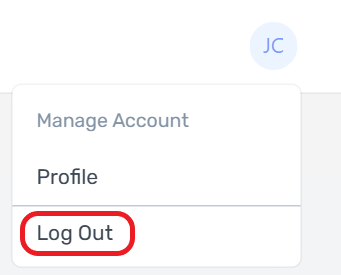
The account management menu is located at the far left, and will always show the current user logged in. If no image has been provided, then the menu will display the user’s first and last initials.

When selected, this menu will display the following options:
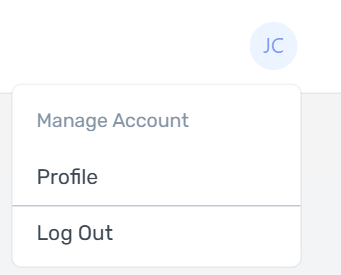
Profile
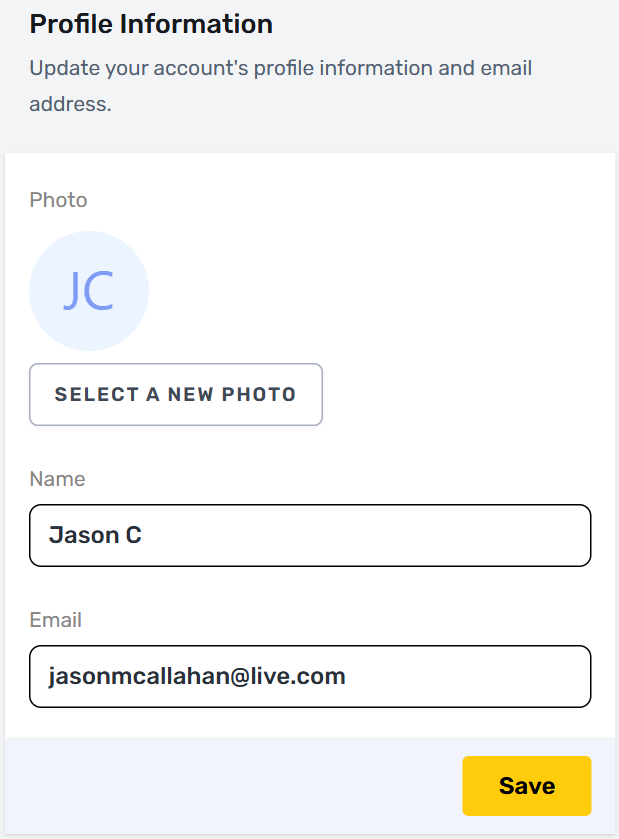
The profile page provides additional details about the current user, with tools to manage who and how this account can be accessed.
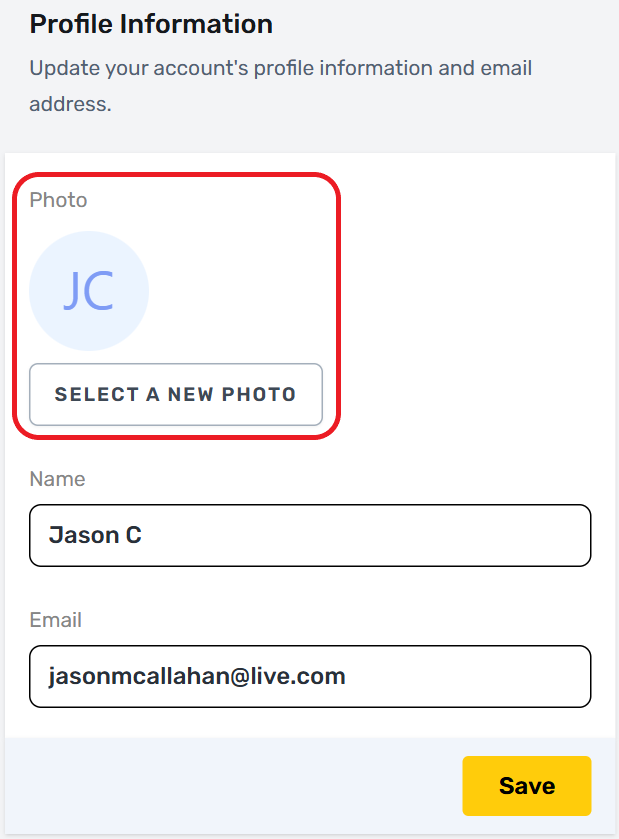
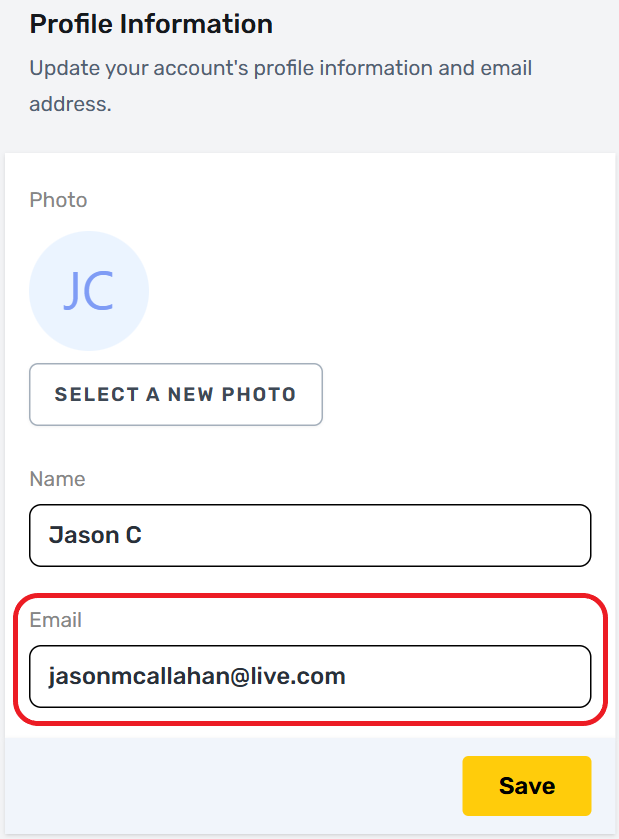
Photo
Each profile can have a phot attached, and update user information. It is recommended that all users provide a current photo of themselves, with their face clearly visible, and without sunglasses or hats, so that management can more easily recognize and memorize a user’s name and face.
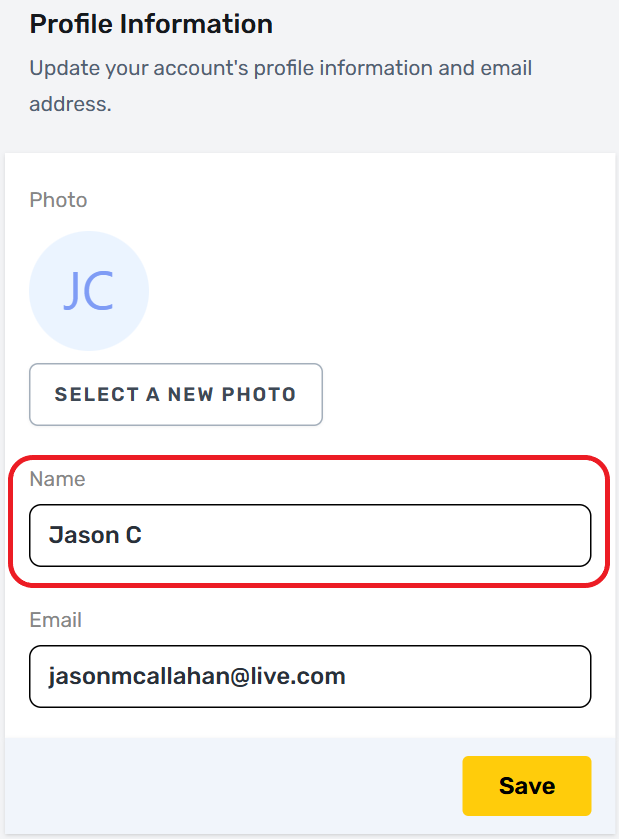
Name
Your provided name should exactly match your driver’s license or other federal ID. The name shown here is used to book flights and hotels, so differences can cause issues during check-in which may cause a missed flight or rejected reservation.
Your provided email should be from your primary email account. System correspondence will be sent to this email address, so be sure it is readily accessible for password resets or notifications.
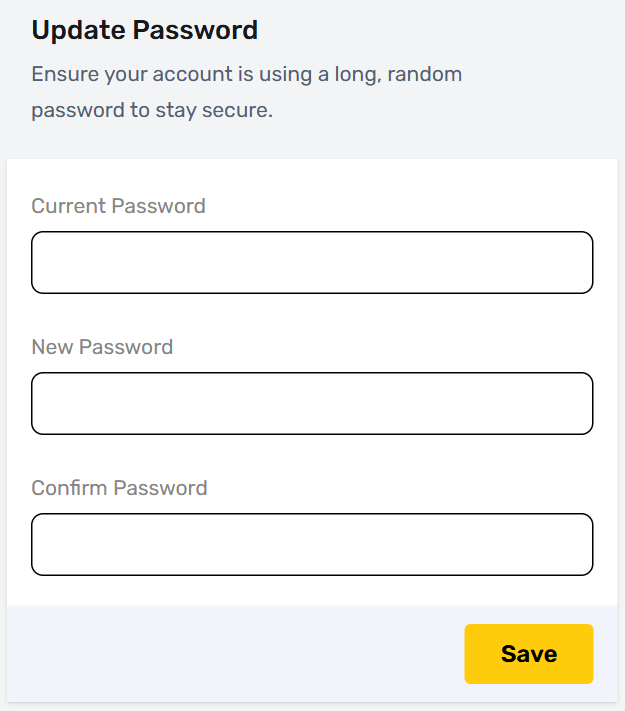
Update Password
Users have the ability to change their passwords at will. Note that supervisors and administrators will always be able to reset this password and access certain account details regardless.
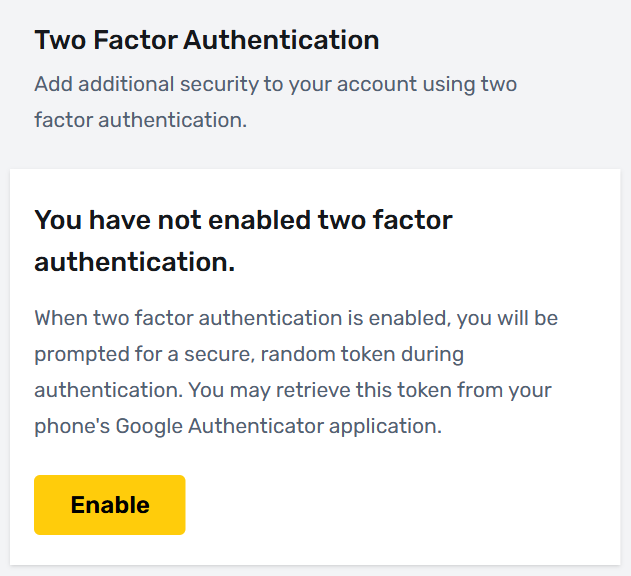
Two Factor Authentication
This advanced security system will be required for some permissions, or access to certain information within the system. Users are free to select an authenticator app of their own, but we recommend Google Authenticator.
Browser Sessions
Browser sessions will show all devices with access to this account. These devices can be forced to log out if needed. This should be done if any device listed is not familiar, or if you have recently used a borrowed device to access your account.
.png)
Log Out
The Log Out option manually ends the current session and returns to the login page. Note that users are automatically logged out if they remain inactive for a certain period of time.