Intro
The MRP Trips module allows for the creation and tracking of Transport Loads for drivers. It shows all Trips scheduled, their details, and the status of each given trip. As drivers progress their assigned load, interactions they have with the Transport module will update the load’s progress here. This view is automatically filtered based on user permissions, only load information a user is authorized to view or modify will appear. The MRP database is automatically updated when a driver starts and completes a load, allowing accurate reporting of material quantities in real time.
Layout
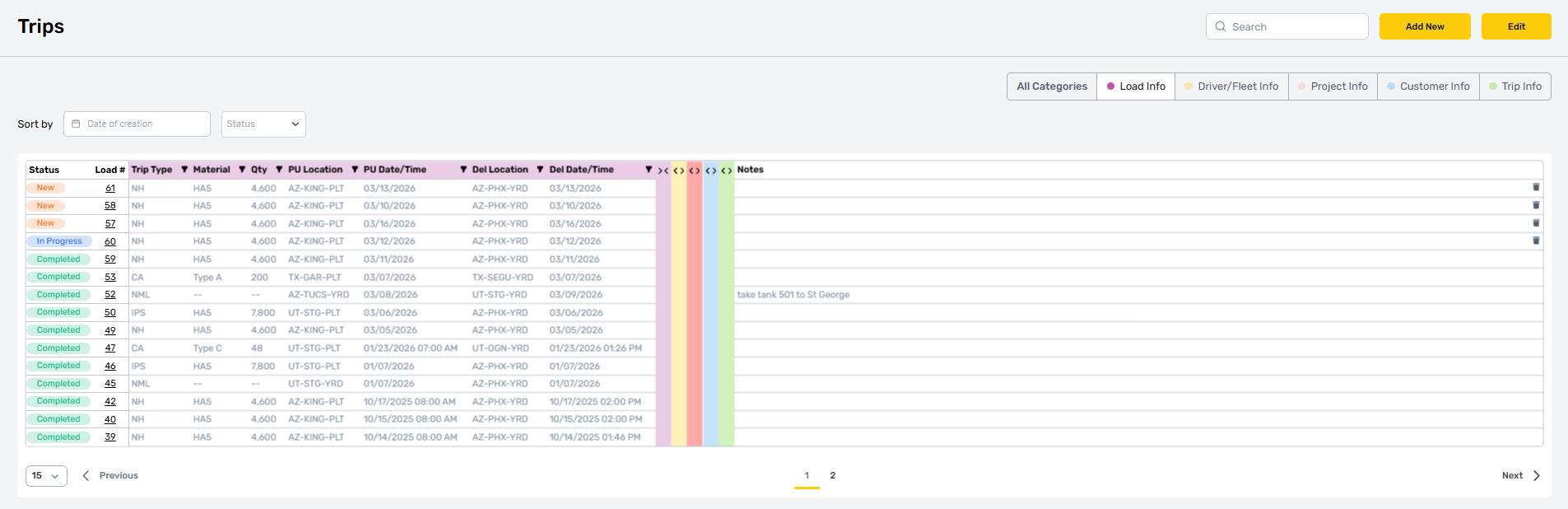
The trips module handles a lot of information on a single page. To accommodate the sheer volume of details, it features some unique controls that help focus and compress information to fit on most device screens.
Category Bar
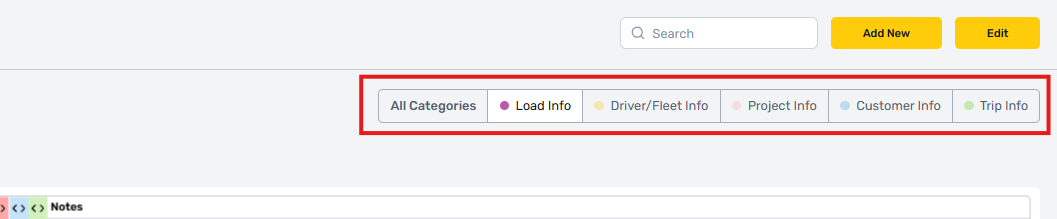
At the top right are a selection of color-coded toggles that will expand or collapse different parts of the trips chart based on the information each section contain.
Load Information
Load information is open by default, and shows essential details about the contents, quantity, and route of a given load. Pick Up and Delivery locations are defined by the Locations module and must be an active designated Yard or Plant. Office or other inactive locations are not shown.
Driver / Fleet Info
This section handles the carrier, fleet, and driver information for a given load. Trips provides for in house, or Subcontractor loads using drivers or companies listed in their related modules. In house drivers must have their HR - Employees record updated to reflect driver qualifications. Subcontractor drivers must be affiliated with a carrier and be listed in the contacts module.
Project Info
The project info section handles information for loads that are dedicated to a specific project. This information is optional and not always needed but can only be selected from active projects in the Projects Module.
Customer Info
Used when loads are transported for a specific customer, this section provides customer billing information about the load. This information is optional and not always needed.
Trip Info
Trip information is collected or calculated based on driver inputs during the trip, allowing for costing, time, and overall performance to be calculated per individual trip. This information is used to run reports and make adjustments to routes and schedules, as well as identify differences in driving habits.
Add New Trips
Prerequisite Knowledge Required
This section assumes an understanding of the MRP systems which are covered separately, please read and understand those articles attempting to modify the live Trips module in any way.
Trips are only created by user action based on needs established in the MRP module. An understanding of the MRP process essential to use the Trips module correctly.
Select the “Add New” Button
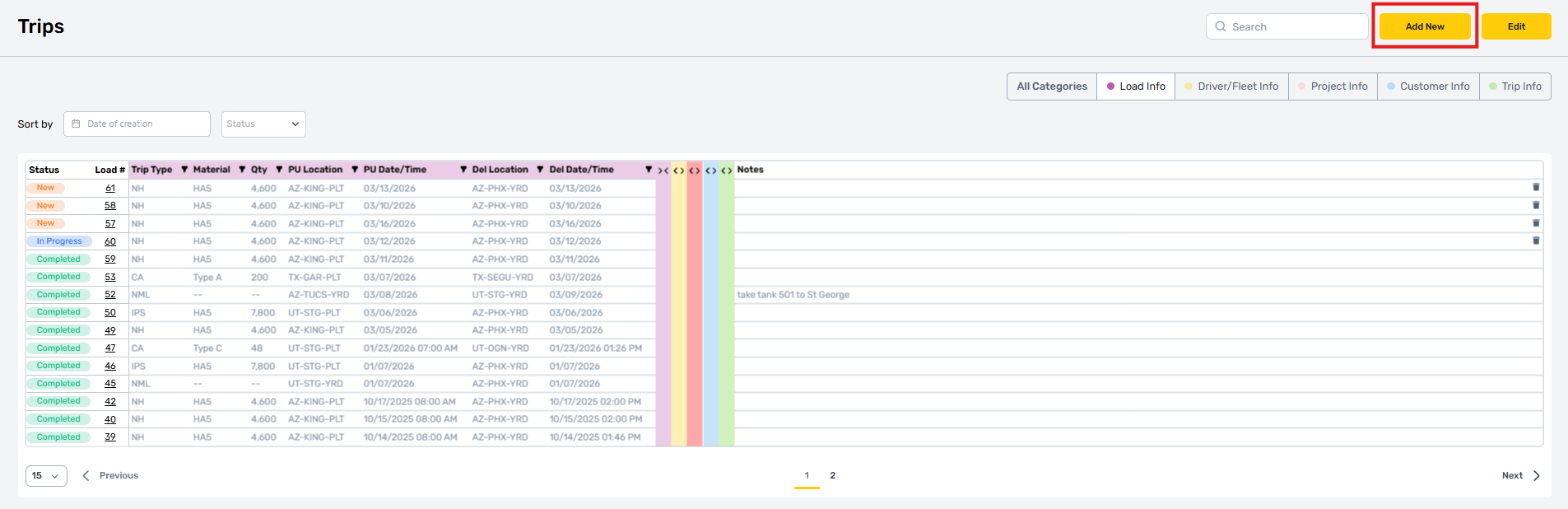
To add a new trip, begin by selecting the “Add New” button at the top right. This button only appears to users with permission create trips, contact your administrator if it’s not available and access is required. All users with create permissions will also have edit permissions for the trip’s module.
Enter Trip Information
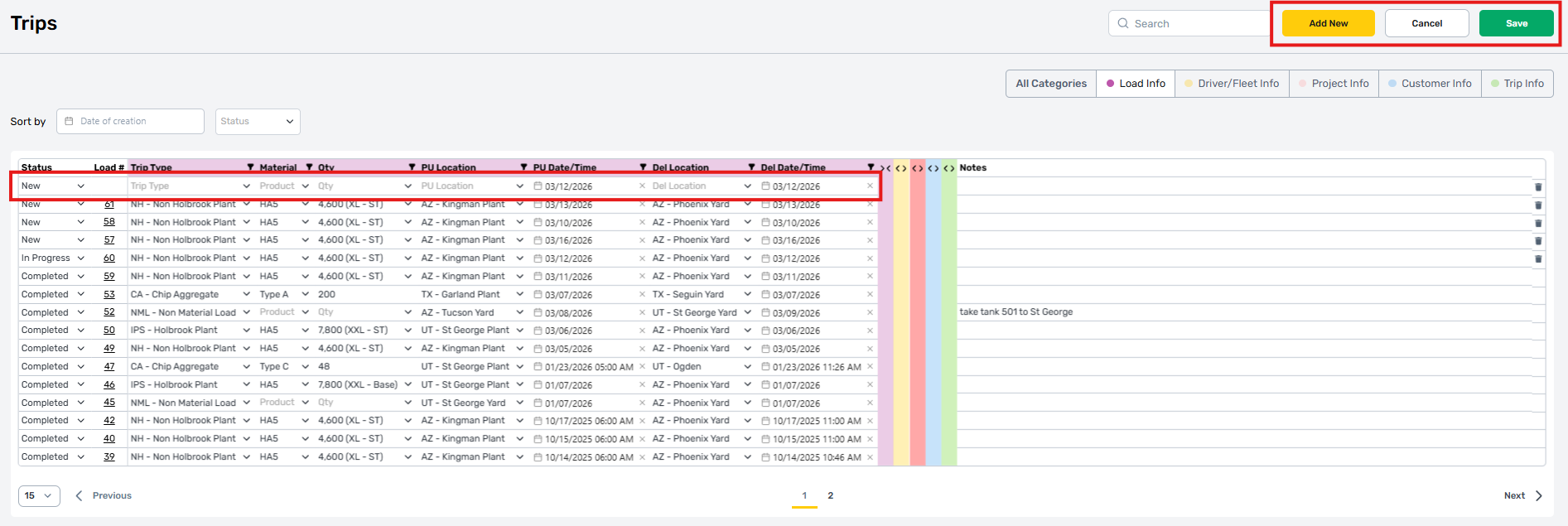
Creating a new Trip automatically places the module in “Edit” mode. This is reflected by the presence of a Cancel / Save option next to the “Add New” button. Multiple new trips can be created by selecting the “Add New” button, doing so will create additional blank lines on the trips chart. A description of categories and form fields is provided later in this article.
Select Save
Anytime changes are made to the contents of a trip, users must select save to lock these changes in. Leaving or refreshing the page before selecting save will result in changes being lost.
Editing Trips
Prerequisite Knowledge Required
This section assumes an understanding of the MRP systems which are covered separately, please read and understand those articles attempting to modify the live Trips module in any way.
Existing trips can be modified by selecting the edit button at the top right of the view. Users with edit permissions can modify any existing trips but may not have permission to create new ones. If neither button is available at the top right, then the current account has view only permissions, contact your system administrator if you need permissions adjusted to have this issue resolved.
Select The “Edit” Button
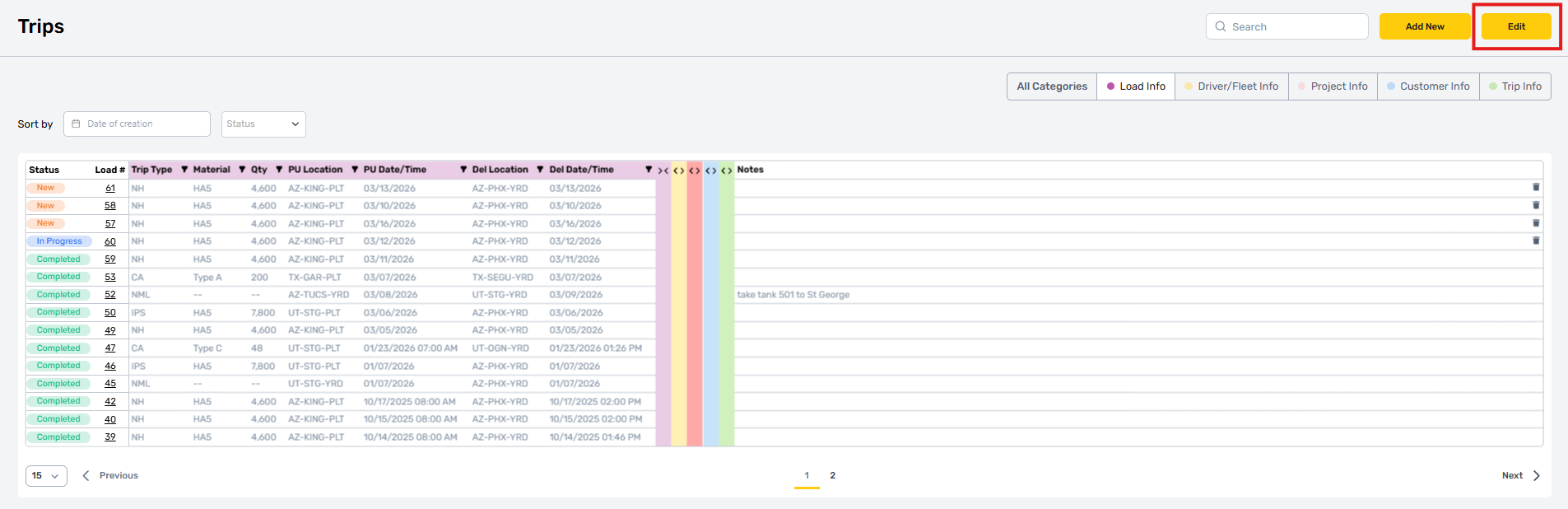
Update fields
In edit mode, the cancel save buttons will appear at the top right, and the charts various fields will unlock to allow changes. Make sure you understand the MRP process, and the effects these fields will have before making any adjustments.
Select Save
After all changes are made, select save to lock in these changes. Leaving or refreshing the page without saving will drop any changes.
Trips Description Form Fields
The following section provides descriptions of each field on the Trips chart in order from left to right.
Trip Type
The trip type field determines the classification or purpose for the current trip. Changing these settings will affect what type of information that a driver is required to provide, and which conditions must be met to complete a trip. It also affects what options are available in other fields on the trips record.
Its options include:
NH - Non-Holbrook Plant
IPS - Holbrook Plant
NML - Non-Material Load
CA - Chip Aggregate
Material
The material field indicates which material is being moved on this load and is only active when a Trip Type allows for material selection. It will include all materials currently active in the Materials module.
Qty (Quantity)
Indicates the volume of liquid materials being moved in increments based on trailer size. It helps determine which trailer tanker should be used to move this load.
PU Location
The Pickup Location field is a drop down that lists from active locations in the locations module that are Plants or Yards.
PU Date / Time
Pickup Date and time control when a driver has access to start a trip, the date is required while a specific starting time is optional. A warning is triggered if a driver has not started their load by the time indicated.
Del Location
The Delivery Location field is a drop down that lists from active locations in the locations module that are Plants or Yards.
Del Date / Time
Delivery Date and time control the amount of time a driver has to complete a trip, the date is required while a specific ending time is optional. A warning is triggered if a driver’s load is still open when the delivery time is exceeded.
Company
The Company field indicates the assigned in-house or subcontracted carrier assigned to a load. This selection determines which drivers and fleet options are available.
Driver
The assigned driver is selected from affiliated drivers for each company. Drivers can see all loads assigned to them in the system, or through the subcontractor portal. Only loads for the current day can be started.
Truck# - Trailer1 - Trailer - Dolly
For in-house operations, the truck, trailer, and dolly numbers will only list compatible and authorized fleet determined in the fleet module. For loads provided by a subcontractor, drivers have the ability to manually provide the fleet information used by their carrier.
Project ID
The unique database ID number for a project.
Project Name
The assigned name of a project.
Customer
The customer assigned to a given load.
Cust PO #
The reference number of a purchase order for the current load.
SO #
The reference number of a sales order for the current load.
NS Invoice
The reference number of a net suite invoice for the current load.
Amount
The total amount charged to a customer for the current load.
DH Miles
Short for “Dead Head”, this field indicates how many miles that a tractor / trailer is driven empty.
Load Miles
The total distance that a loaded tractor trailer drives on a route.
Start Time
The point at which a driver begins to operate.
RTL Time
The point at which a driver is Ready to Load assigned cargo.
Total Miles
The total distance driven, loaded and empty, during a given trip.