Intro
Custom Events are useful for planning, note taking, or communications between different calendars users. These events can be used to mark company holidays, draft plans in development, block out days for a major weather or local event, and otherwise coordinate plans outside the scope provided in the Project Module. These events are NOT work orders, and will NOT be affiliated with any Project, Work Order, or MOB. Labor and Materials cannot be assigned to a custom event directly. Custom events provide flexibility to catch and handle anything not already covered by the tools available in Pops, but do come with some important limitations:
Custom events DO NOT appear on operation schedules.
Custom events can’t receive provisions or log labor hours.
Custom events cant interacts with or share information automatically to existing events.
User Event Form
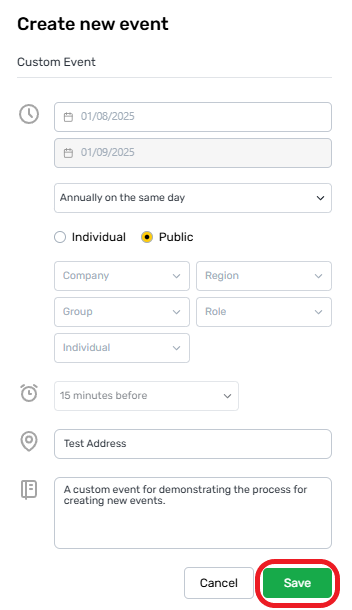
To create a user event, select the “Add Event” button to show the Create New Event menu.
.png)
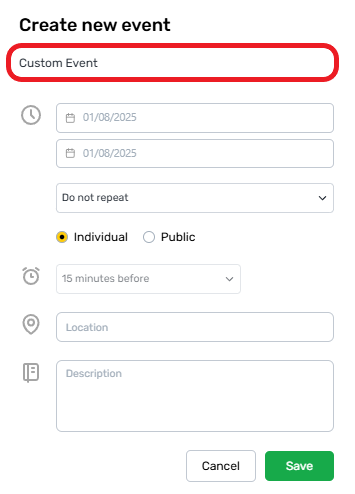
Name The Event (Required)
All events must have a title to be saved.
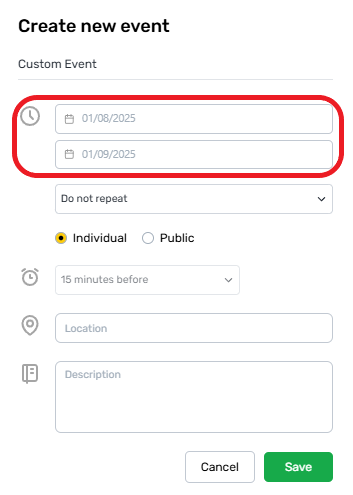
Set The Event Date (Required)
By default, new events will save to the current date, but the start and end times can be adjusted by the user as needed. User events can only be created for the current day or future dates.
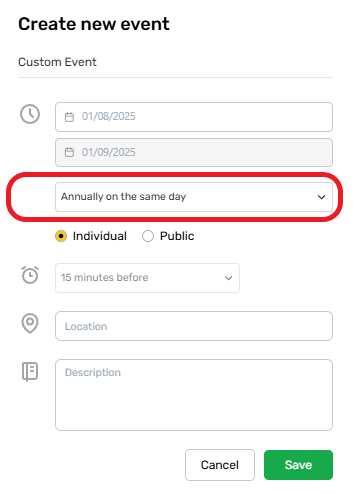
Choose Repeat Interval (Optional)
Event repeat settings are below the date selectors and allow for a small selection of preset repeat schedules.
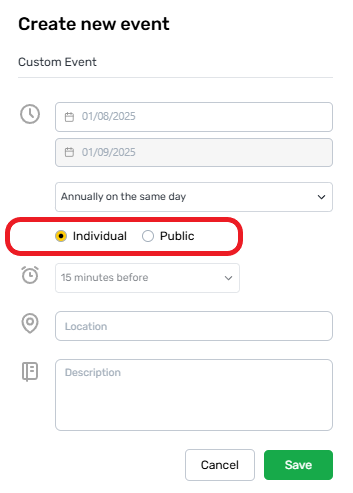
Select Event Privacy (Optional)
The Individual or Public buttons control weather this event can be viewed by all users of the Calendar Module, or only by the person who creates it. This setting will default to the individual.
Define Public Event Visibility (Optional)
If the Public setting is selected, additional targeting fields will appear. These fields will allow the event to be shown only to users that its relevant to. Some users will have permission to view all public events, but this allows for events to be focused on specific users.
Leaving all targeting fields blank will make this event visible to all users with access to the calendar. Custom events will not be shown on the Schedule Module or appear to users in other parts of the system.
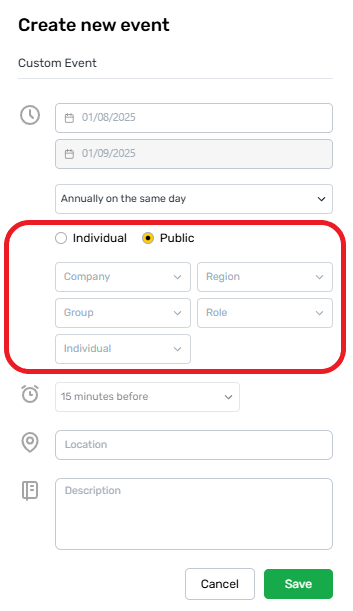
Targeting Field Descriptions
Company targets this event to users affiliated with a specific company.
Region limits visibility to users within a specific region.
Group targets the message to members of a specific department or other user group.
Role delivers the event to any person with matching role permissions.
Individual allows events to be manually targeted to specific employees listed in the employee module.
These filters can be stacked or combined as needed.
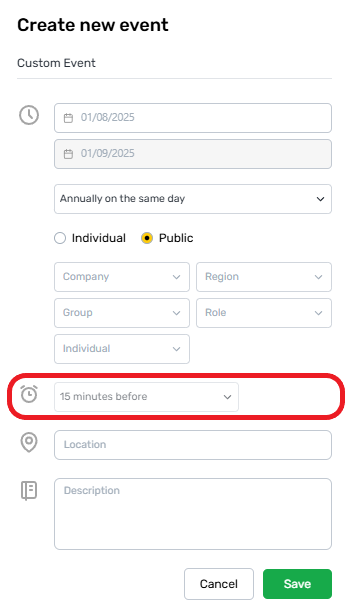
Determine Alert Settings (Optional)
Under Construction
Event alerts determine when notifications are sent to users related to this event. This module is currently under construction and does not function.
Alert settings define when or if alerts are sent to users identified in the Targeting Fields above.
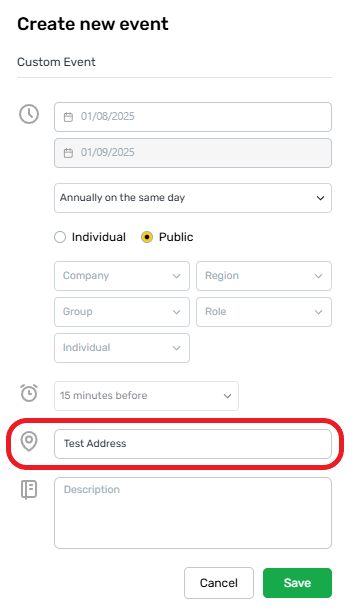
Set The Location (Optional)
The Location field determines which region or sub-region is related to this event. Depending on the location, different users may be able to view this event in the calendar.
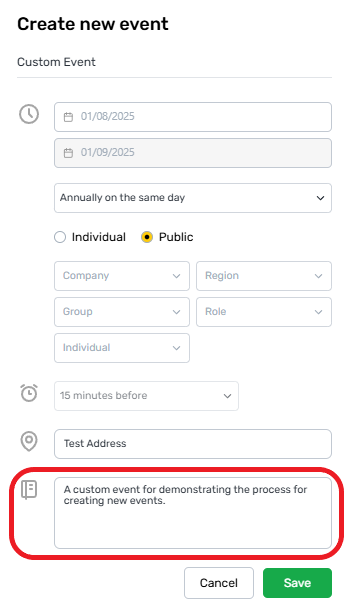
Describe The Event (Optional)
The Description field acts as a general notes field for the event.
Select Save (Required)
Once all information has been provided, select “Save” to post the event.
User Event Pill
After saving, a user event pill will appear on the calendar using the color below. It will have the name selected on the form above.
