This module is recommended for use on desktop and mobile web browsers. Some functionality may be limited when viewed from a mobile device.
Prerequisite Content Recommended
This article assumes you are familiar with the Manpower Assign Overview. Some content may not make sense without first reading the overview.
Intro
Manpower Assign allows for advanced planning across multiple work orders in different regions simultaneously. This article will explain the process for filtering and assigning resources to these work orders as part of the Manpower Planning process. This article will use the desktop browser view for this process, but some of these functions are available on mobile web browsers if needed.
Filter By Day
By default, Manpower assign will show the current day only, allowing for incremental planning. Often, planning sessions can encompass multiple days or entire weeks. These can be displayed by selecting the days of a current week that need to be planned. .png "Main View - Clean - Date Picker Marked(1).png")
Be Aware
At this time, ProfitOps only supports viewing days from the currently selected week.
For this scenario, we will be planning for the next Monday. This means selecting the week button and then that day on the calendar.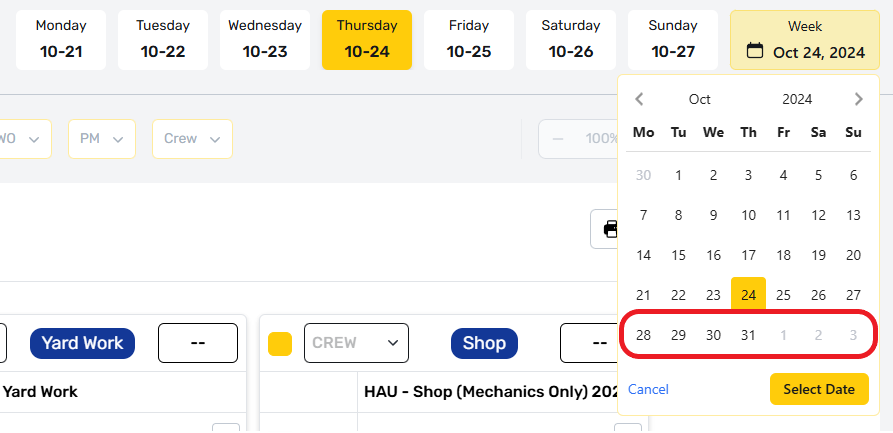
You’ll see that the dates reflected on each day selector update to match the whole week. Initially, only the exact date selected will be displayed, but we can add more by selecting the days we intend to plan for. For this example, we will plan for Monday only.

Filter By Attribute
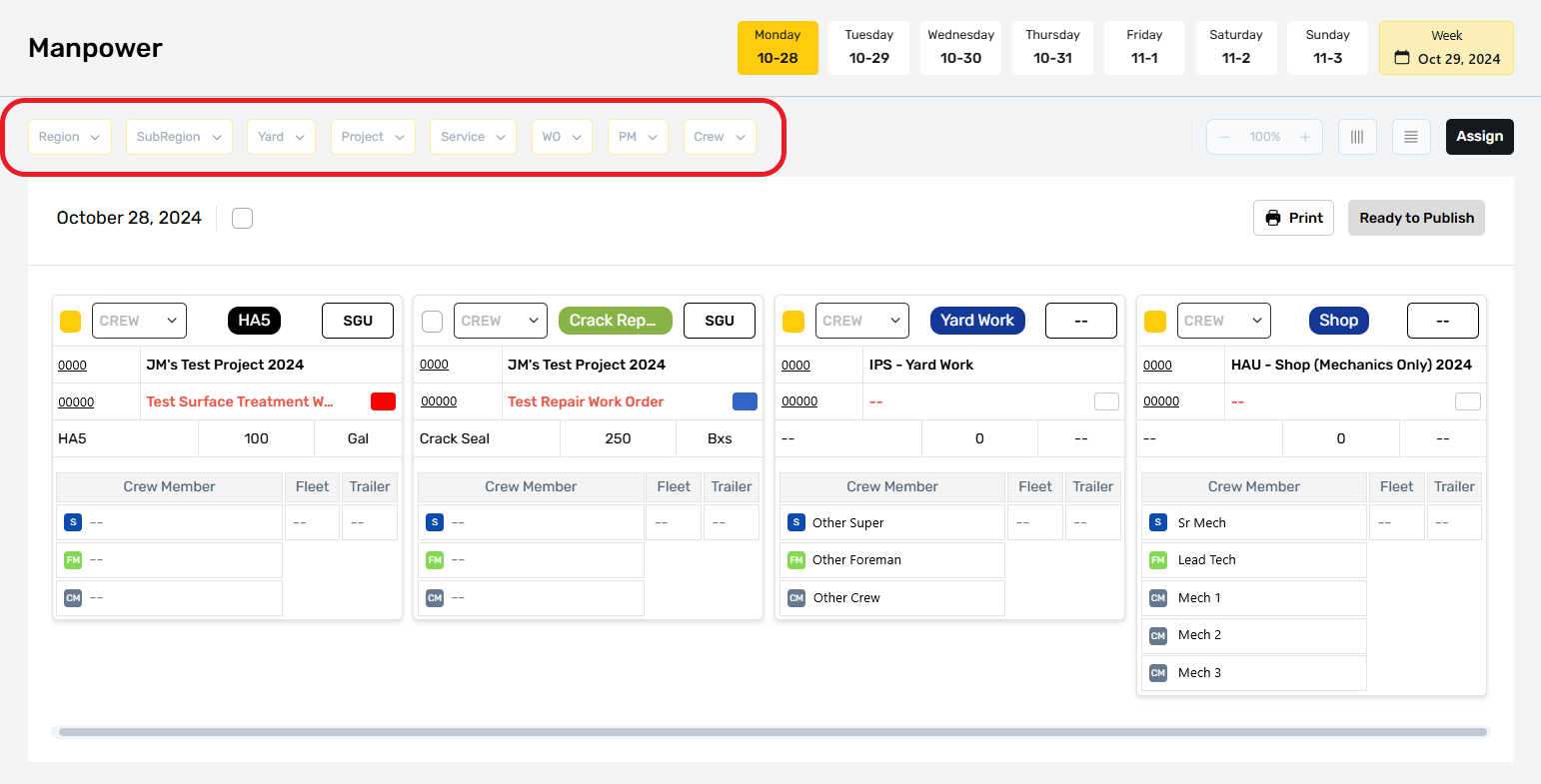
We currently see more Work Orders than are necessary, but we can screen out the extra ones by using the Attribute Filters. We want to plan all work orders for the Yard we are currently working with in St George.
Region Filter
We can screen off all other work orders by selecting the Region filter, and then the St George Yard - SGU option.
.png "Main View - Clean - Date Advanced - Filters Expanded(1).png")
Other Filters
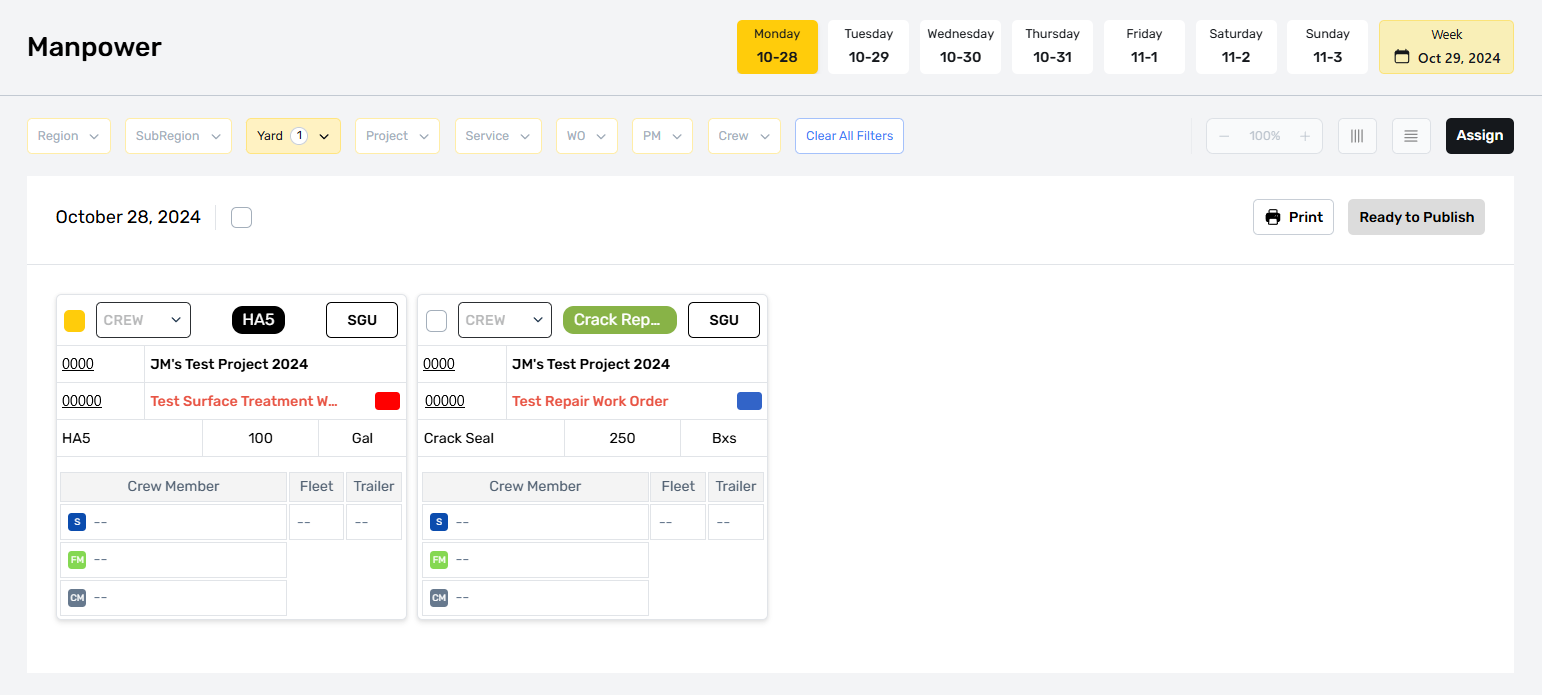
This is enough to focus the work orders we need to plan, but additional filters are available to help focus down larger amounts of information.
Plan & Assign
The remaining work orders on this page are what we will be planning for. A complete labor assignment requires a Foreman, Crew, and Fleet. Superintendents should be assigned, if that assignment is known, but can be left blank until the day a work order is scheduled.
.png "Main View - Clean - Date Advanced - Filters Aplied(1).png")
Be Aware
If the Superintendent is not assigned when the Foreman Checks Out of a work order, they will be required to assign one manually.
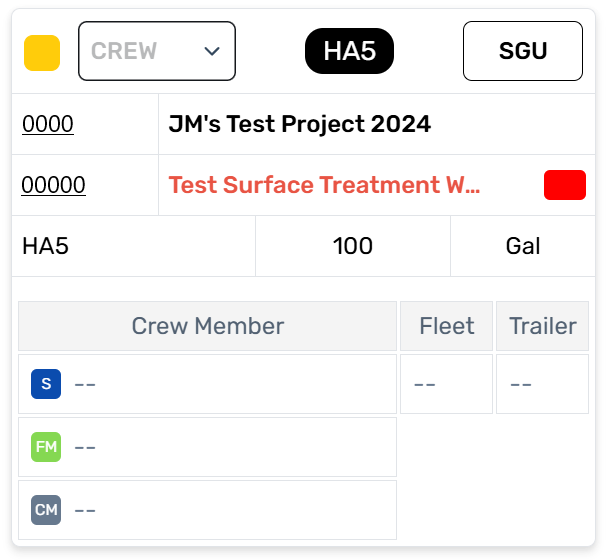
HA5 Planning
This work order is for HA5, which requires an Applicator Truck. We need a Foreman with a CDL on file, and a truck that is authorized to work with HA5 materials.
Assign Button
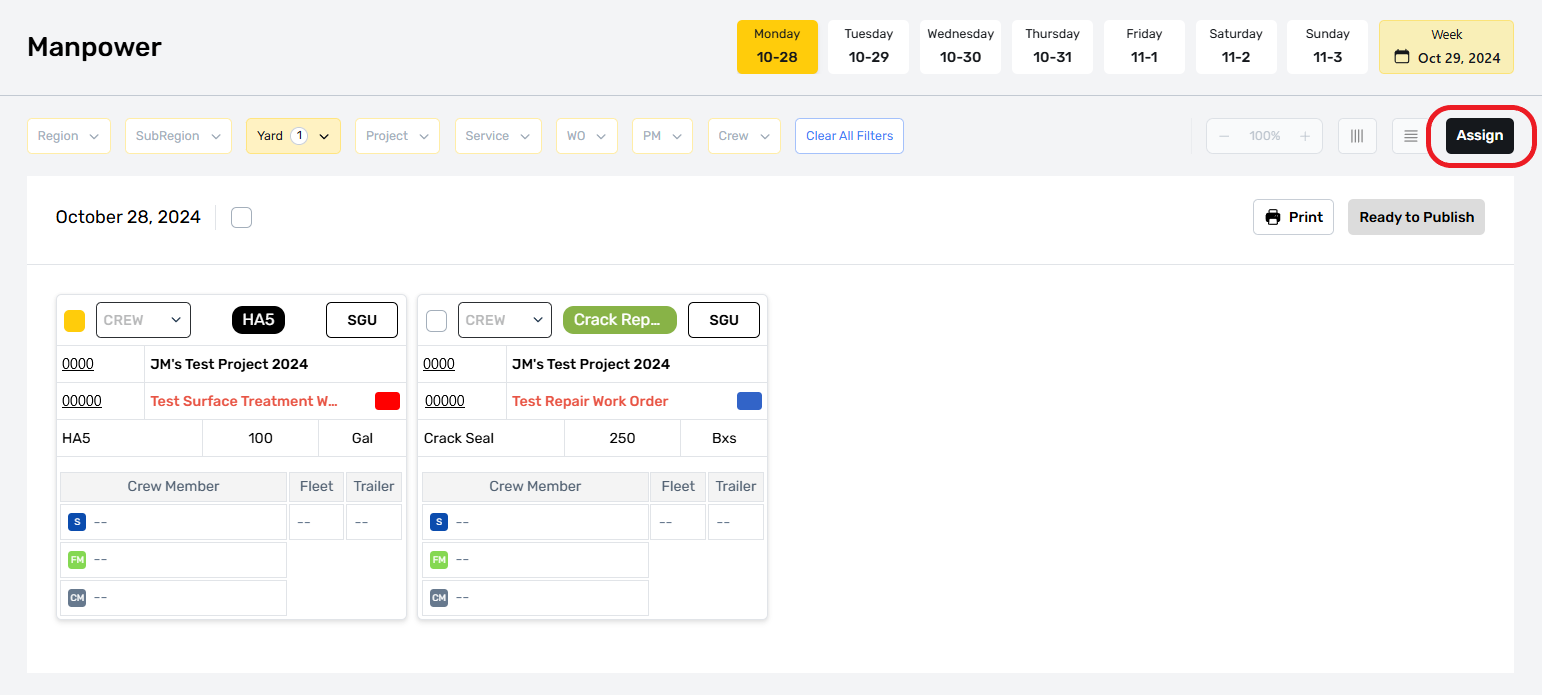
We can find these resources in the Assign Listing, by selecting the Assign button at the top right.
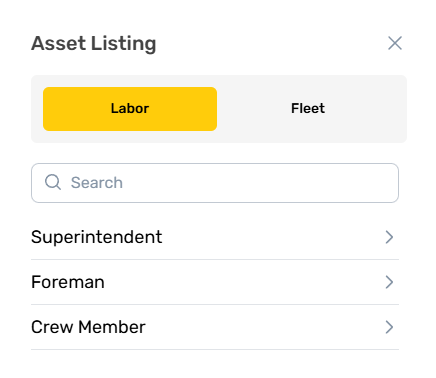
Assign Listing
The Assign Listing is divided into Labor and Fleet resources, which can be searched individually using the search bar at the top.
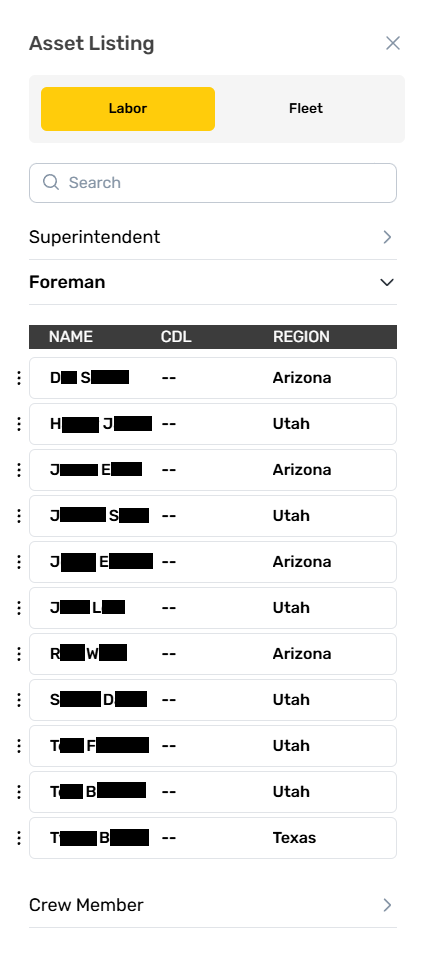
Labor Foreman
The list of available labor is extensive, despite the filters we applied earlier being used to screen out the Assign menus results automatically.
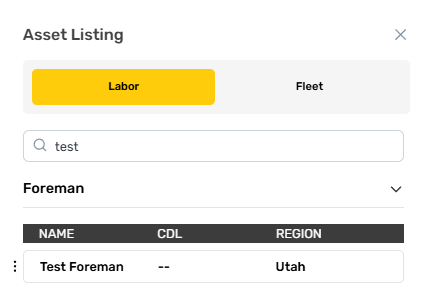
Search Bar
For this scenario, we want to assign our test accounts, so we will search for “test” in the search bar at the top to show all accounts with that phrase in the first or last name.
Labor Role Requirements
Labor is sorted by role, with restrictions on who can be assigned to available fields in a work order. Superintendents can be assigned to any role. Foreman can be assigned to their own role slot or to a crew role.

The Crew Members role can only be assigned in the crew slot on a work order. Only one Foreman and Super role can be assigned to a work order, but additional users with this permission set can be assigned as crew.
Choosing A Foreman
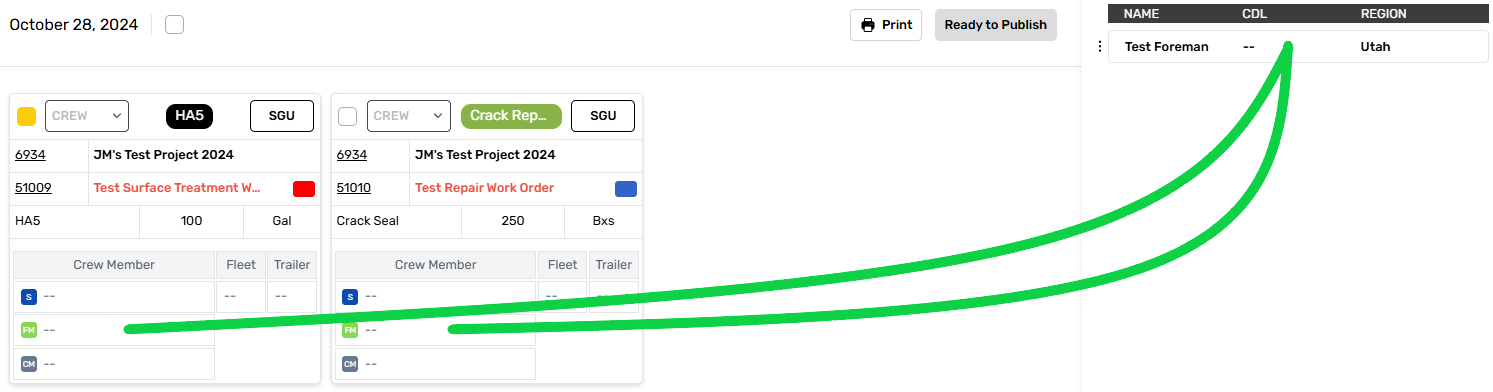
You can see our Foreman account has a CDL, so he is fit to service this work order. To assign him, we can click his record and drag it into position. This works on mobile devices by tapping and dragging.
Preset Crew
This foreman happens to have a preset crew defined in the Manpower Crews. We can import the whole crew by selecting the crew drop down and choosing the preset crew from the options. This will erase any crew selections that have already been made and replace them with the presets.
Assignment Limits
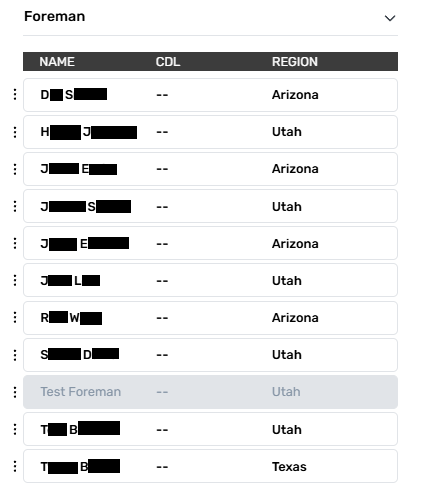
There are limits to the kinds of work that crew, foreman, and supers can be assigned. Foreman may only be assigned to a single service per project on a given day, so Manpower Assign grays out our Test Foreman’s record on the Asset Listing to let us know this Foreman is not available.
We can still assign this Foreman to additional work orders, but this is not recommended unless there are no other options. For this scenario, we will assign our Test Superintendent as a foreman to handle the other work order.
Work Order assignments can be freely modified until a user clocks in to their assigned work order. Once labor hours are logged to the work order, the user that logs them is locked to the work order. This is indicated using the same status dot system found on the Work Order labor tab.
GREEN indicates the user is currently clocked in.
YELLOW indicates the user has clocked out.
The Gray status dot is not shown on the manpower module.
Choosing HA5 Fleet
Select the fleet tab on the Assign menu to see a list of available Fleet. Like with labor, the attribute filters we applied to screen work orders are automatically carried through to this tab. Fleet vehicles are sorted by type. HA5 requires an applicator to perform the service, so we’ll select the Applicator drop down.
HA5 Material Considerations
The total materials for this work order are less than 1000gal, so we don’t need a large truck but have the option to assign one. Fleet 147 is rated to dispense 1,500 gallons so it’s the smallest rig on offer that can do the work.
We’ll assign it by clicking and dragging the vehicle into position. Applicator trucks only have two seats rated for freeway travel, but we have four people assigned to this work order. This means we need another support fleet that can transport the extra two workers.
Crack Repair Planning
We can see on manpower that there is a crack fill assignment on the same project, so we know that fleet capable of performing this work will be required in the same area. If we use the same crew to do both work orders, then the fleet used for the crack repair can be used to transport our other two crew.
Choosing Crack Repair Fleet
We can open the section for Trucks and Misc equipment to see a list of available trucks. These are light trucks that don’t require a CDL, so any crew with a standard driver’s license can operate them. We’ll grab a PU/flatbed, which can be used for a lot of different utility tasks but isn’t able to dispense materials. To fill the requirements for our crack fill work order, well grab a crack pot from its designated list. This is a trailer that must be paired with a tow vehicle, which our PU/flatbed can handle.
Preset Crews
We assign all three fleet to the HA5 and Crack Repair work order. Since the same crew are required on both work orders, and since our Test Foreman has a preset crew, we can use the Test Crew preset for this work order by selecting the crew drop down on the work order and choosing our test crew from the options shown.
Manpower Crew
This loads our entire crew with a single click, saving time. If you have enough preset crews defined, it’s possible to plan whole sessions using only the presets. The process to build a preset crew is covered separately under [missing name].
Publish Changes
These two work orders are now planned, but have not been published, so they don’t appear on the work order or schedule yet. To complete the planning process for these work orders, select “Ready To Publish”, you’ll not that the checkbox on both work orders disappears, indicating that both work orders have been published and their changes are live.