This module is recommended for use on desktop and mobile web browsers. Some functionality may be limited when viewed from a mobile device.
Prerequisite Content Recommended
This article assumes you are familiar with documentation under the Schedule and Work Orders and Work Order Tabs sections. See the “related articles” section at the bottom of this page for prerequisite recommendations.
Intro & Layout
Manpower Assign is a powerful high level management tool that enables Directors, Superintendents, and Administrators to allocate workforce labor to large numbers of work orders as a batch. This allows users to plan farther ahead by simultaneously viewing and updating multiple work orders for a given day and week.
Manpower Cards
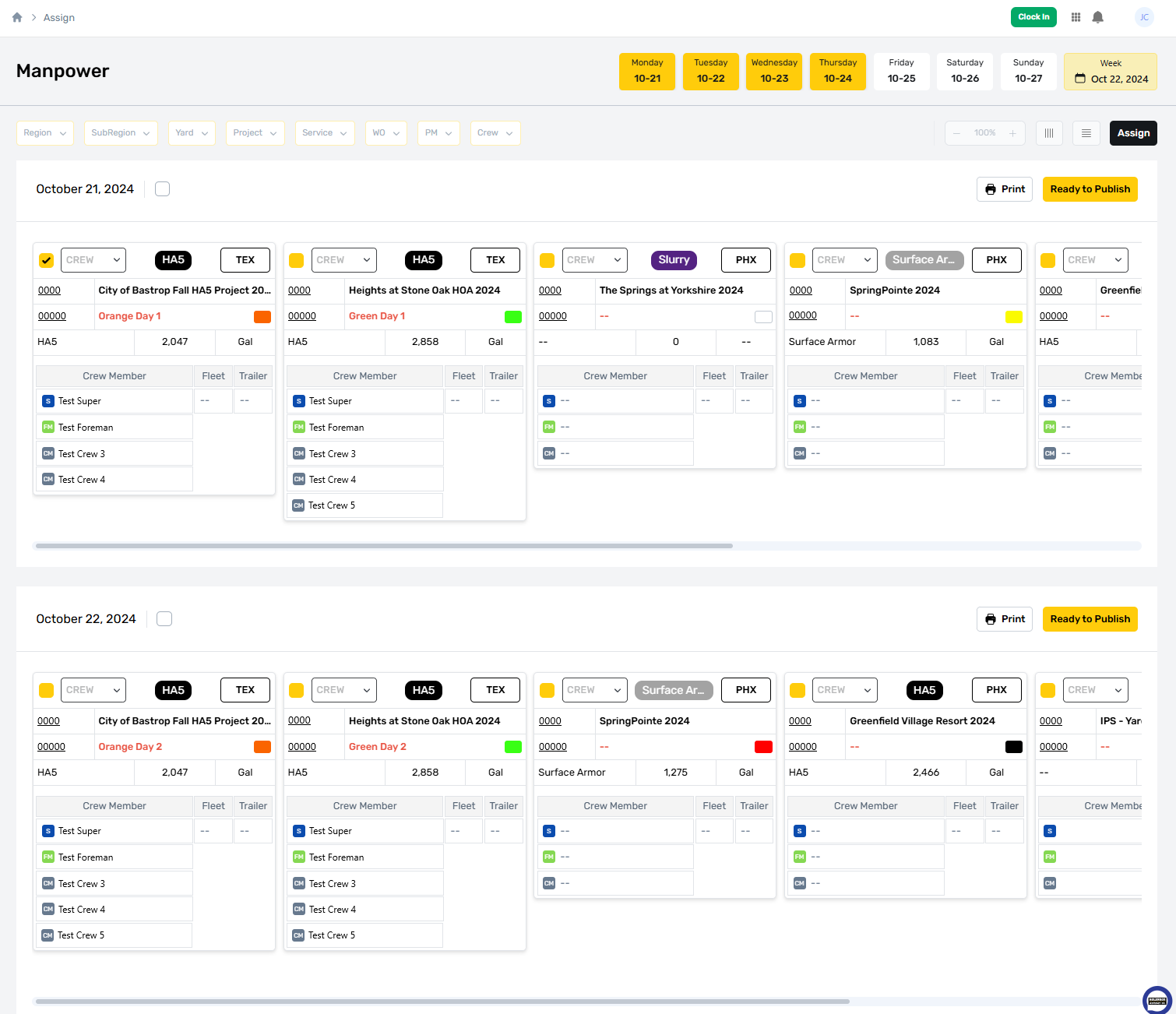
Manpower Assign represents work orders in small containers called cards. Each card represents a single Work Order, and each row of cards are the work orders active for a single day. This amount of information can be overwhelming, so Manpower Assign provides several filters to help drill down to the exact information required. Filters are covered later on in this article.
Day Picker
At the top right is the Date Picker. This will default to the current day, but additional days can be added or removed by selecting them to toggle visibility within a given week.
The current week can be adjusted by selecting the date box at the farthest right. Select any date and the day pickers will adjust to show the other days for that week.
.png "Assign - Day Picker(1).png")
Attribute Filters
Attribute filters are available below the Day Picker and to the left. These attributes are similar to those found in other parts of ProfitOps. Work Orders can be screened out based on Region, Subregion, Yard, Project, Service, WO (Work Order), Project Manager, and Crew. Multiple filters can be active at the same time.

Layout Controls
Manpower Assign will default to a horizontal layout, where scrolling down advances the date. Layout controls are available to shift the day arrangement of manpower cards between vertical and horizontal layout, in addition to changing the zoom.
In vertical layout, date is advanced by scrolling to the right. This layout is common to task management apps like Trello and Jira so it may be more familiar to users of these applications. This training article will use the default horizontal mode.

Assign Button
The assign button opens the assign menu, which is used to assign labor and fleet to the manpower cards. We’ll discuss how to use this menu separately in the Manpower Assign Procedure.
Day Container [may change]
All cards in Manpower Assign are sorted by day to keep things organized. Each day container can be printed or published using the controls at the far right. Printing a day will generate a PDF with all the work orders currently displayed on screen.
Manpower Card Header
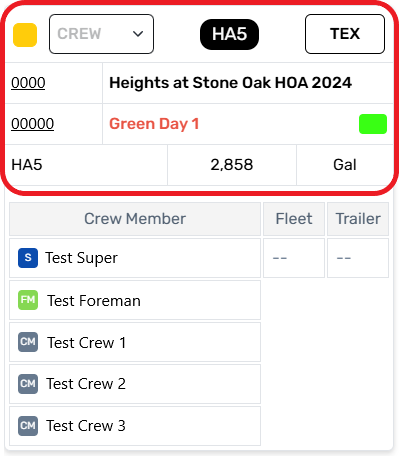
Work order information is shown on the header for each card, which is divided into four rows. The top row handles preset crew, service, and region codes. The second-row handles project information. The third row handles work order information, with the bottom row providing extra details about work order materials.
Published Status
The Published Status Indicator is located at the top right and shows if the current data on the card is published or not. A solid gold square indicates that all information is published. This information will appear to all users with permission and be shown on the Schedule Module.
Unpublished changes will show a black checkmark inside the gold square. This means that some or all of the information on this card does not appear on the work order or Schedule modules.
Crew Drop Down
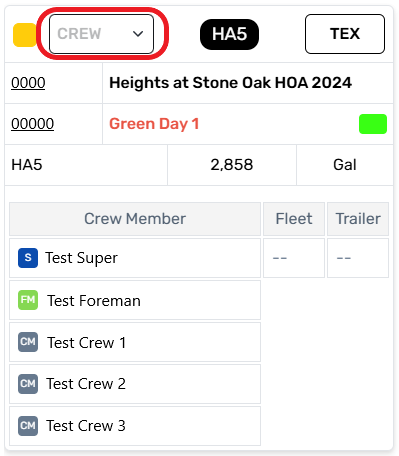
The Crew Drop Down allows for preset crew to be assigned to a work order. Preset or Saved Crew are created using the Manpower Crew page which is covered separately. This feature allows an entire work crew to be assigned with a single click, helping keep work crews grouped together and reducing the time required to plan.
This feature works based on crew availability. Only active crews that are currently in the same location as the work order will be available to select. If no selections are available, check the Manpower Crew page to review available crew.
Note that choosing a preset crew will remove all existing labor assignments from a work order so that only the preset crew are assigned. Custom adjustments can be made to the work order after a preset crew is chosen.
Service Pill
The Service Pill identifies the specific service this work order is attached to and is the same as found in other parts of the system. This information is populated from the Projects module and cannot be changed from Manpower Assign.
Region Code
The Region Code indicates the specific region that a work order is taking place in. This is derived from the physical address associated with the project and populates automatically. Like with the service pill, it cannot be changed from the Manpower Module.
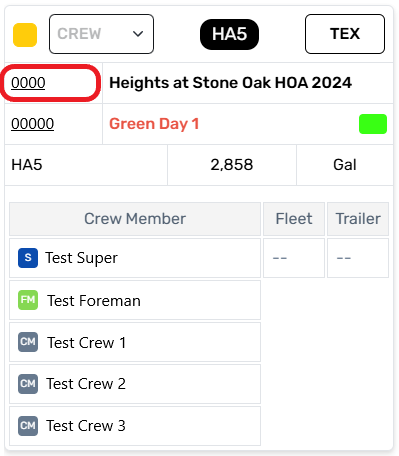
Project ID
The Project ID is a unique number assigned to each project when it is created. This field can be selected to view the project directly. Project view permissions are required for this link to work.
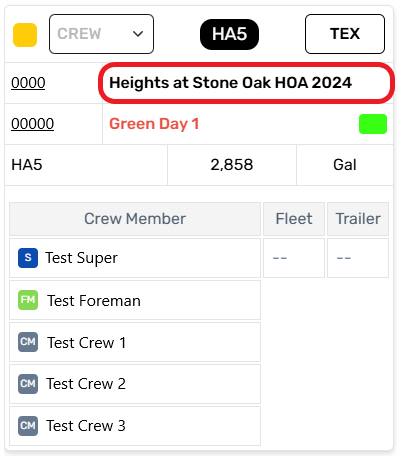
Project Name
The Project name is a unique name assigned to each project when it is created. This field is informational and cannot be selected or changed.
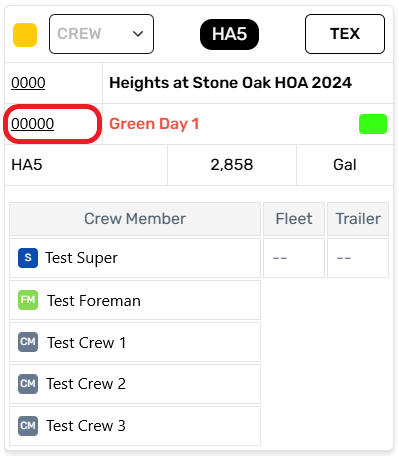
Work Order ID
The Work Order ID is a unique number assigned to each work order when it is created. This field can be selected to view the work order directly. Work Order view permissions are required for this link to work.
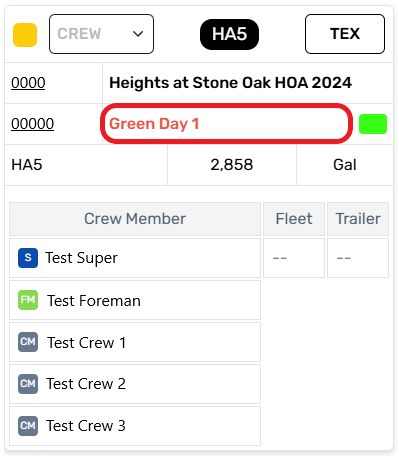
Work Order Name
The Work Order Name is an optional identifier that may or may not be used. This information is populated from the Project → Service → Gallon Caunt or Box Count sub-tabs and will appear blank if the project manager has not provided one. This information cannot be changed from Manpower Assign.
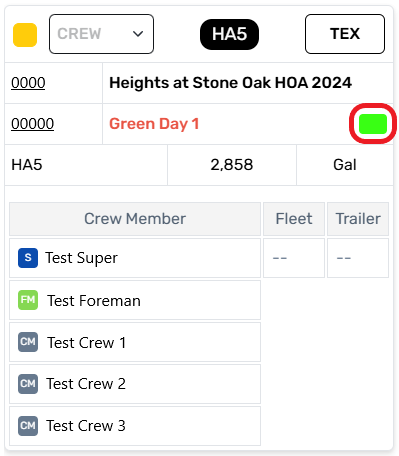
Work Order Color
The Work Order Color is used to help identify work areas on physical maps and fliers. The assigned color shown here will appear on these maps to illustrate the exact areas to be serviced as part of the work order.
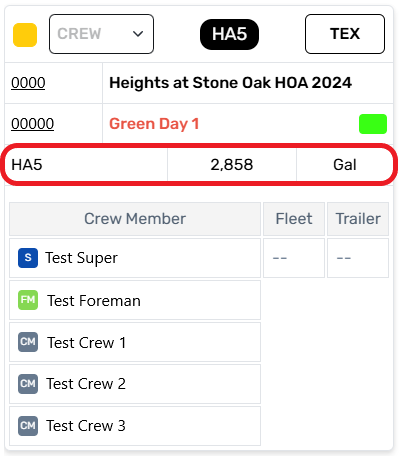
Material Data
Material data provides some basic information about the type and total materials to be distributed as part of the work order. A more detailed version of this information can be found in on the Work Order’s Material Tab, which can be located by selecting the Work Order ID mentioned earlier in this article.
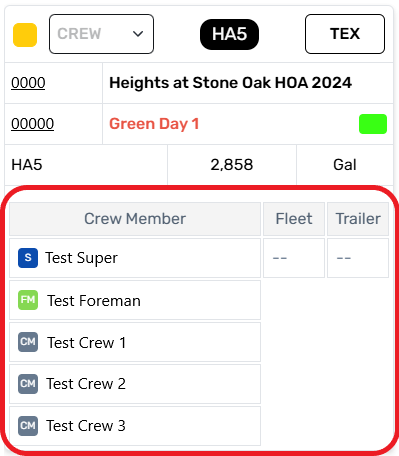
Card Roster
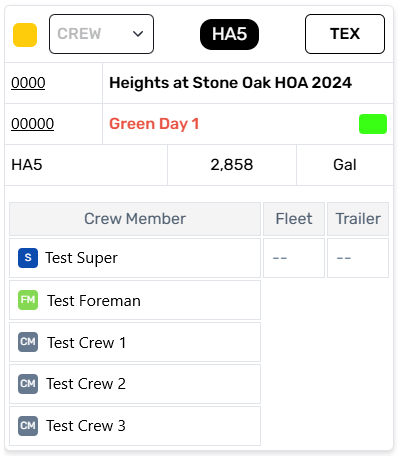
The Card Roster is shown beneath the header and handles information from the Work Order’s Labor Tab and Fleet Tab. This allows crew and fleet vehicles to be planned at the same time. Changes made to the card roster are not published until the “Ready to Publish” button is selected. This allows users to experiment and make adjustments to these assignments without causing the live schedule to update and notify work crews.
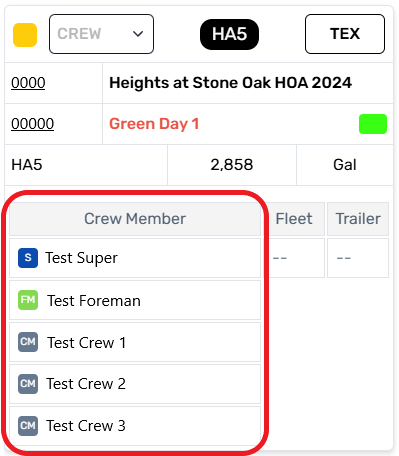
Labor Roster
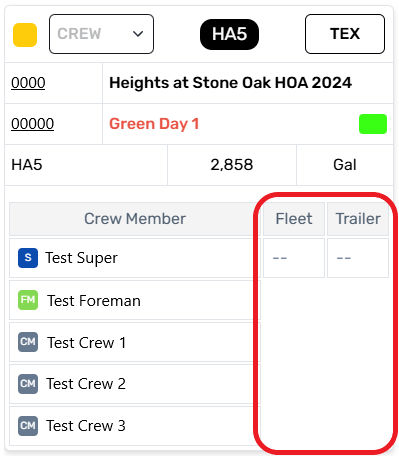
The Labor Roster is shown to the left side of the card roster, and lists all crew currently assigned to the work order. Preset crews can be selected using the Crew drop down discussed earlier, or users can build a crew manually using the Assign button at the top right of the page. Well, discuss the “Assign” button and related features in a moment.
Fleet Roster
The Fleet Roster is shown to the right and is broken into a Fleet & Trailer column. These two rosters are not connected, so crew and fleet can be added or deleted freely from one another. Each trailer assigned to a work order will require one compatible fleet vehicle to tow it, lone trailers are not allowed.
Crew shown on the same row aren’t necessarily required to drive a vehicle or trailer, though some services will require a CDL driver to be assigned on the crew to operate large trucks. Well, discuss this in more detail separately.