Intro
The Manpower Crew page handles all aspects of crew selection and MOB planning, allowing users to see the status of all preset crews, there current location, where they are scheduled to be, and for how long they are scheduled in a given area. This page determines what preset crews are available for a given work order on the Manpower Assign page, which is covered separately.
Crew List View
The crew list view shows all crews, current and former, that are available to be activated or assigned to a given MOB. This field has a number of attributes, but only three are unique to this page. Other attributes are covered in the next section.
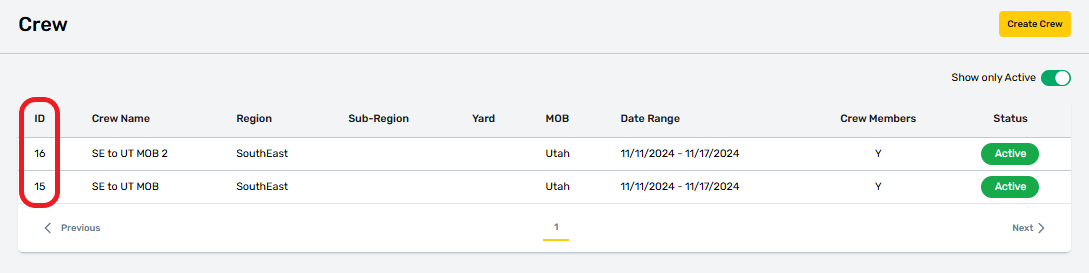
ID
A crew ID number is assigned by the system when a crew record is created, and uniquely identifies each crew.
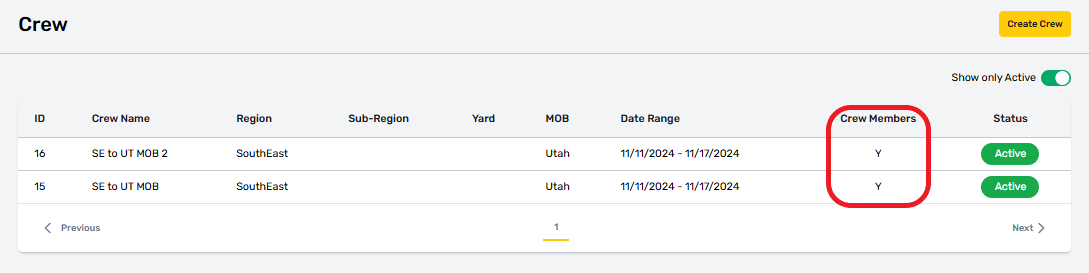
Crew Members
The Crew Members field shows if employees have been assigned to a preset crew. Crews can exist and be scheduled without any employees assigned. When configured this way, empty crews will show up on the calendar module as available to receive assignments.
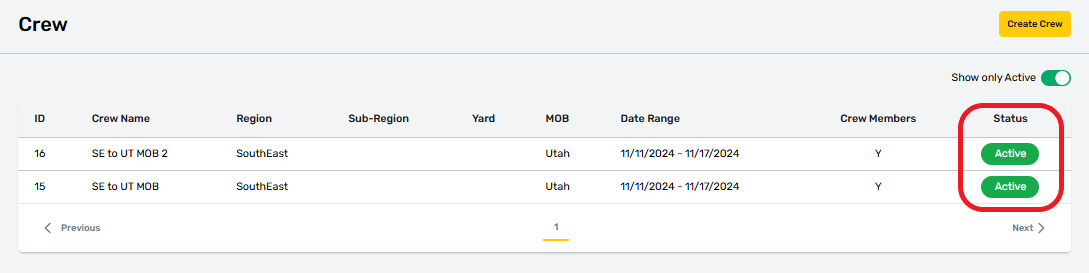
Status
This field determines if a crew is able to be assigned to new work orders. Active crew can be assigned new work orders in manpower assign. Crew can’t be set as “Inactive” while on an active MOB. Crew set to “inactive” will not be available to assign on new work orders and can’t be scheduled to MOB. Existing assignments on work orders are not affected, but a warning will be shown on the Manpower Assign page if an inactive crew is assigned to a work order.
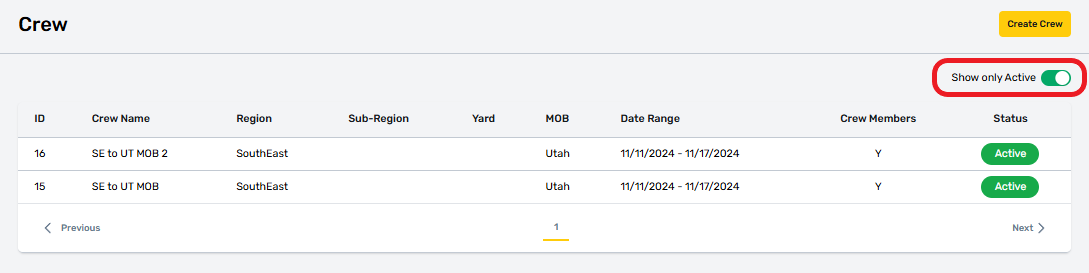
Show Only Active
This toggle filter is on by default and will hide any crew that are “inactive”.
Create A Crew
To create a new crew, select the Create Crew button at the top right. This will open the “Add New Crew” form. Crews cannot be saved or receive employee assignments until all required information is provided.
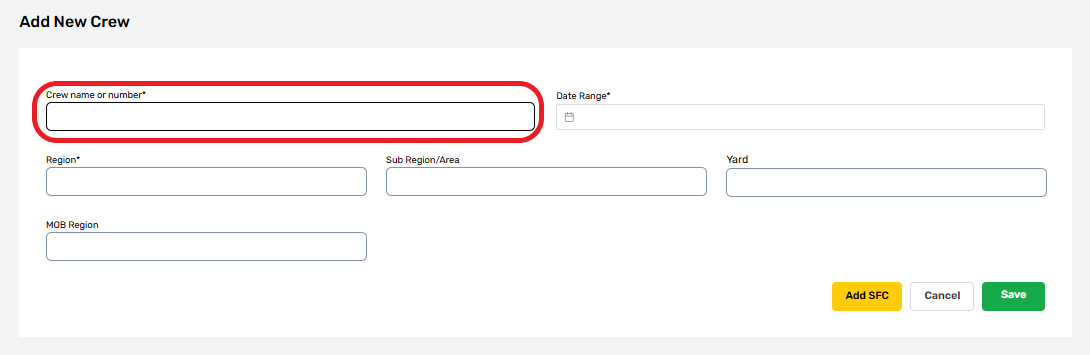
Crew Name or Number (Required)
All crews must have a unique name assigned by the user during crew creation. Names cannot be re-used, but the composition of crews can be changed as needed. This will be covered later.
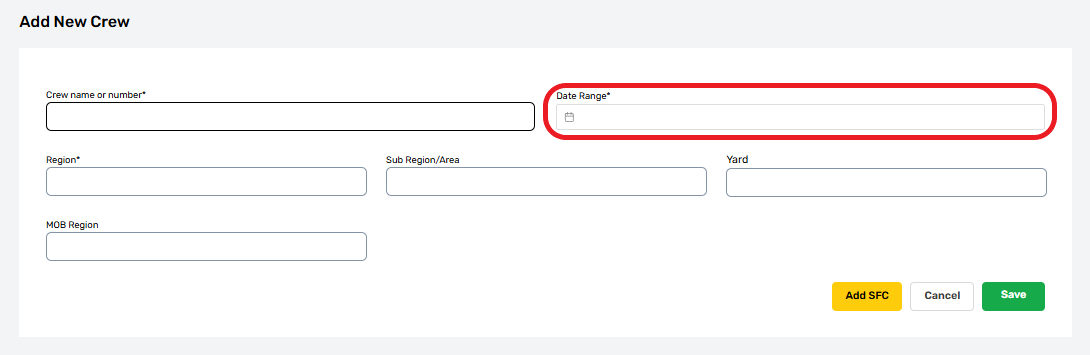
Date Range (Required)
All active crew must have a Date Range that determines the duration of their activity. Crews activate automatically on their start date and become inactive on their end date. If a MOB Region is selected, then Crews will deploy automatically to that region on the start date and return automatically on the end date. The system will generate MOB work orders to facilitate this, and record position changes for those dates.
Region (Required)
The Region field is the permanent home for a given crew. This is the place they will MOB from if deployed, and where they will automatically return at the end of a MOB. Crews will only appear as available for work orders in this region, unless they are on an active MOB. Crew region should only be changed if that crew is permanently transferred to a new location.
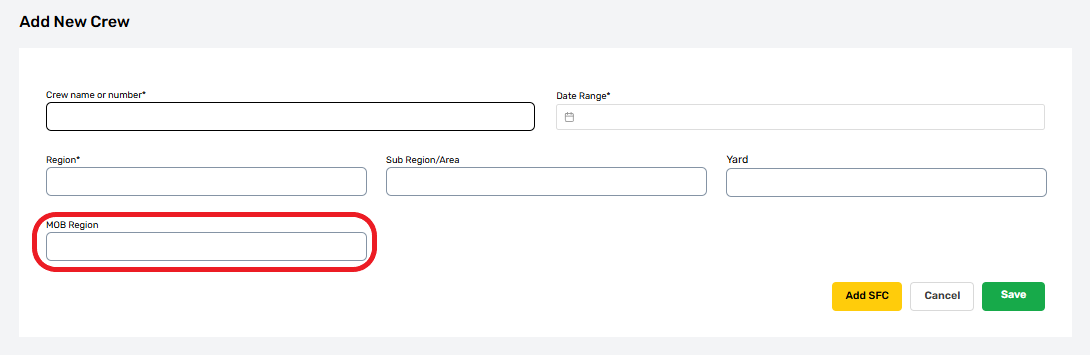
Sub-Region/Area (Optional)
Sub-Regions/Area exist as a part of a Region. If this value is provided, then the related crew will only be available on work orders with a matching sub-region.
Yard (Optional)
Every sub-region has at least one Yard. If this value is provided, then the related crew will only be available on work orders for the related Sub-Region.
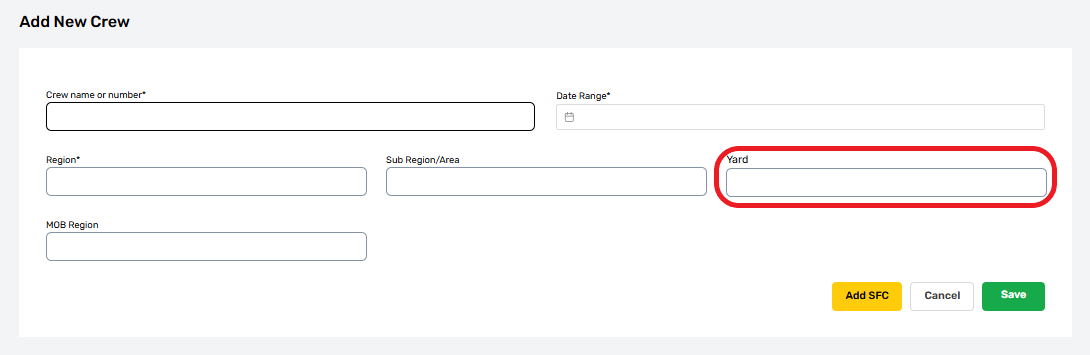
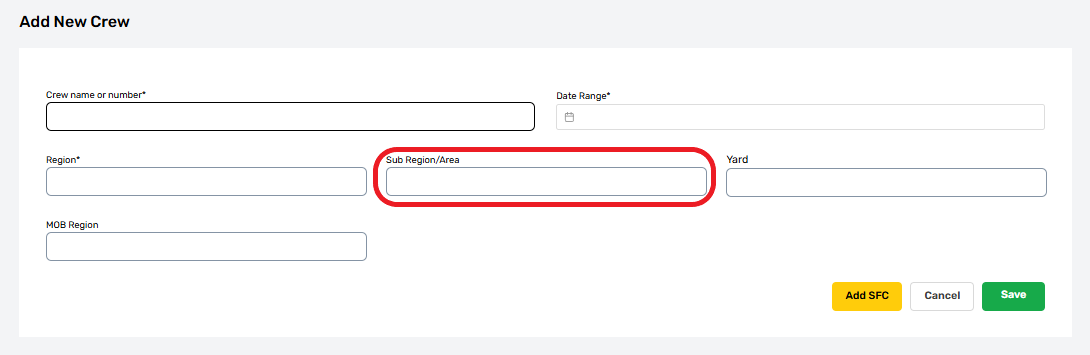
MOB Region (Optional)
This is the region that a crew will MOB to if deployed or scheduled to deploy. MOB region can only be changed if the crew is not currently on a MOB and is not assigned to any future work orders. Crew may only be assigned to a single MOB Region at a time, but this assignment can be changed as often as needed.
.png "Add New Crew - MOB Region(1).png")
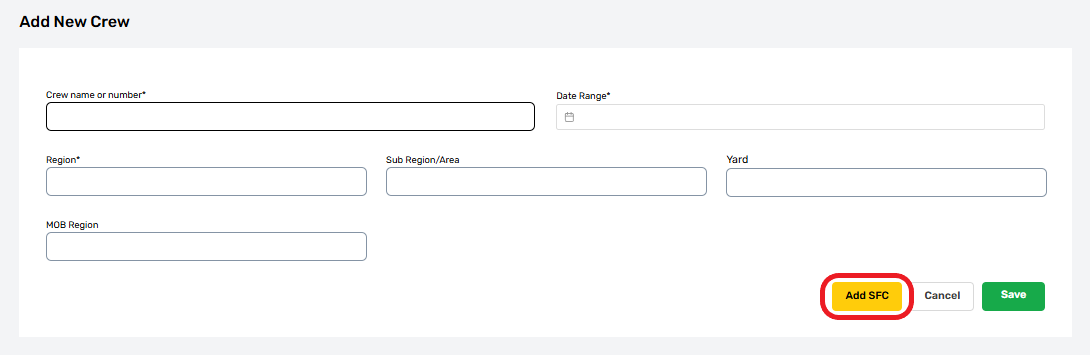
Add SFC
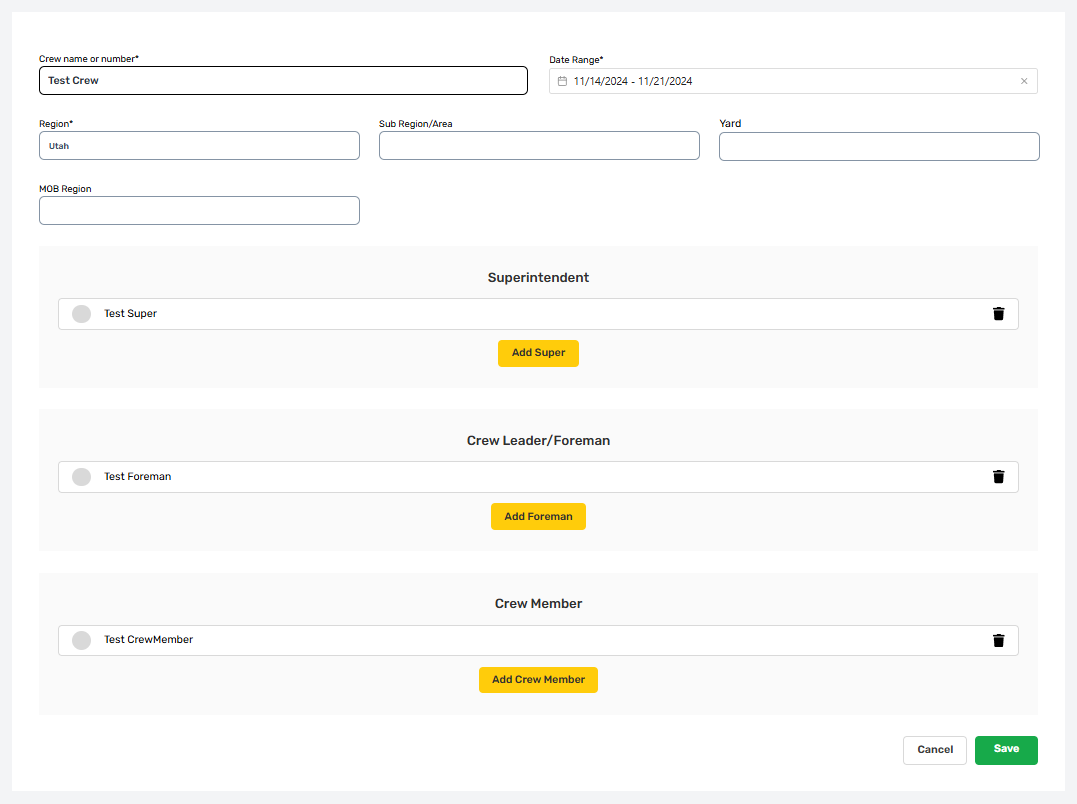
Once required fields have been provided, it’s possible to add Supers, Foreman, and Crew (SFC), this is done by selecting the “Add SFC” button. Crew members may not be known at the time a crew record is created and can be added later as needed.
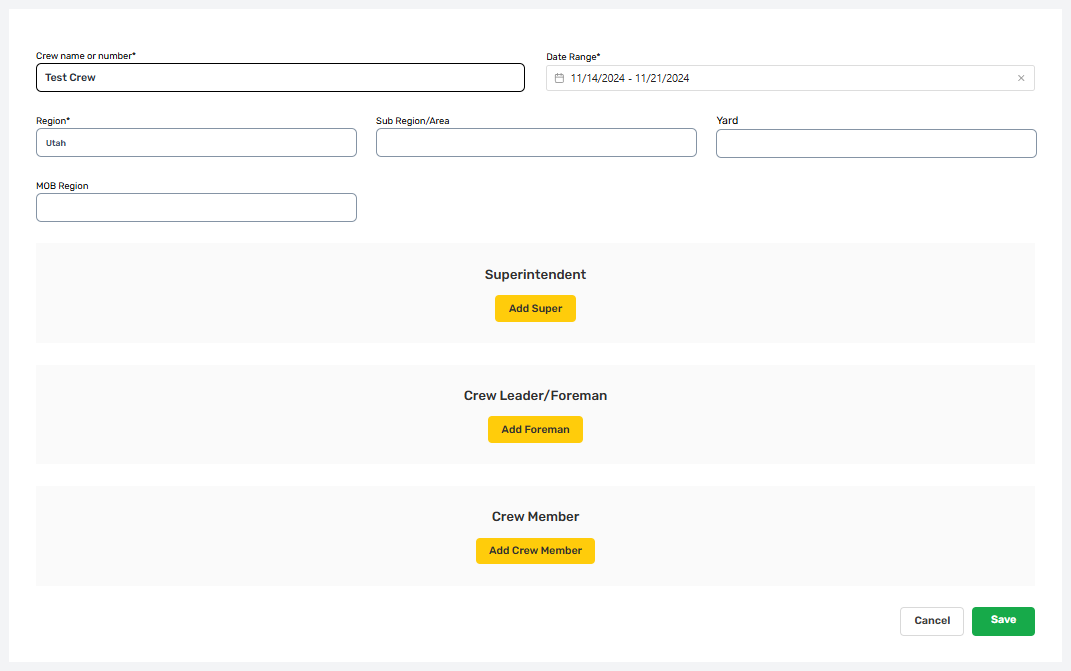
Crew Record
When selected, the crew record will expand to show options for the Superintendent, Crew Leader / Foreman, and Crew Members.
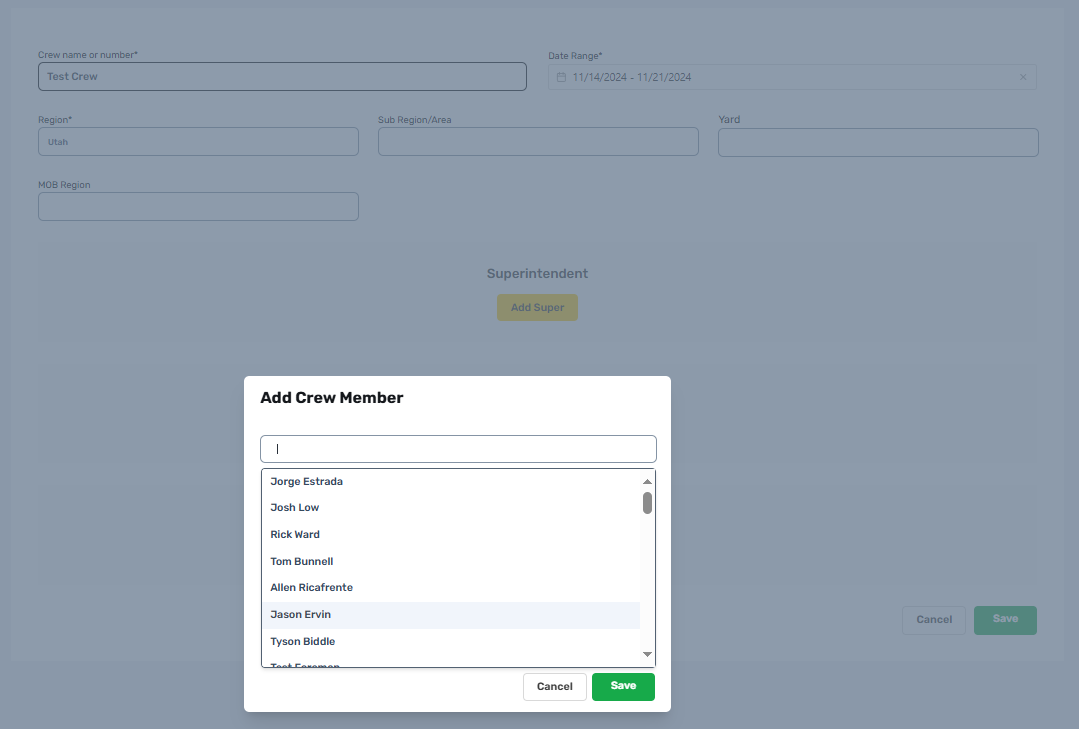
Crew Selection
This process works exactly like it does on the Work Order Labor Tab. Each role is selected individually using the “Add” buttons, which will automatically filter users by their permissions so that only users authorized for each role will appear as selectable. If a user does not appear, check their HR - Employees record to see if there are any issues.
Labor Restrictions
The same restrictions apply to crew selection as exist on the work order labor tab, so only a single Super and Foreman can be assigned to a crew and any number of Crew Members can be assigned.
Save and Return
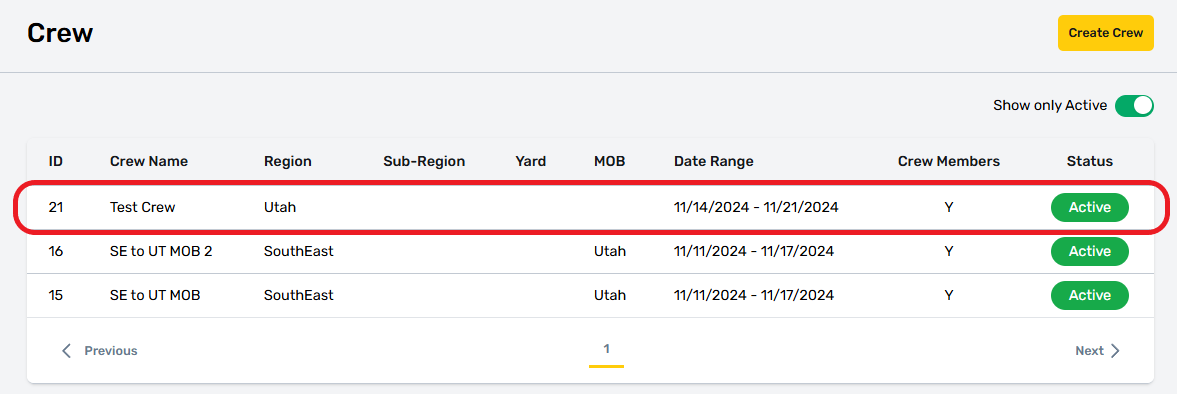
When finished, select save to lock in changes. This will close the crew record and return to the manpower crew list view. Crew records are sorted by their date of activity, with the most current or future dates at the top.
Manpower Crew Assign
This crew is now usable on Manpower assign and can be attached to a work order using the crew drop down.
.png "Manpower Assign - Prese Crew Selection Process(1).png")
A detailed overview and procedures for manpower assign are covered separately.