Intro
A Project are divided into one or more services. Each Service will have a defined area, with service conditions, and other requirements, that will need attention. Some services must be performed before other services, or are required to be performed together, depending on requirements defined by the proposal, local laws, or other considerations.
Creating & Managing Services
Creating and managing services is an essential part of organizing projects and must be done before work orders can be created. Each service will have requirements that must be fulfilled before the project as a whole can advance towards completion. The Project Status Requirements, which handle these requirements, are covered separately.
How to Add a Service
To add a service, select the Edit button at the top right of the module header. This button will be visible regardless of your current service tab, if any.
.png)
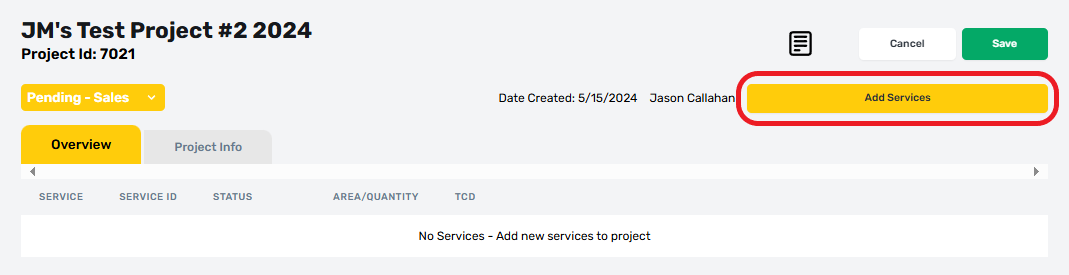
Select Add Services
After a proposal has been uploaded, the Add Services button will unlock. Select this button to open add services drop down.
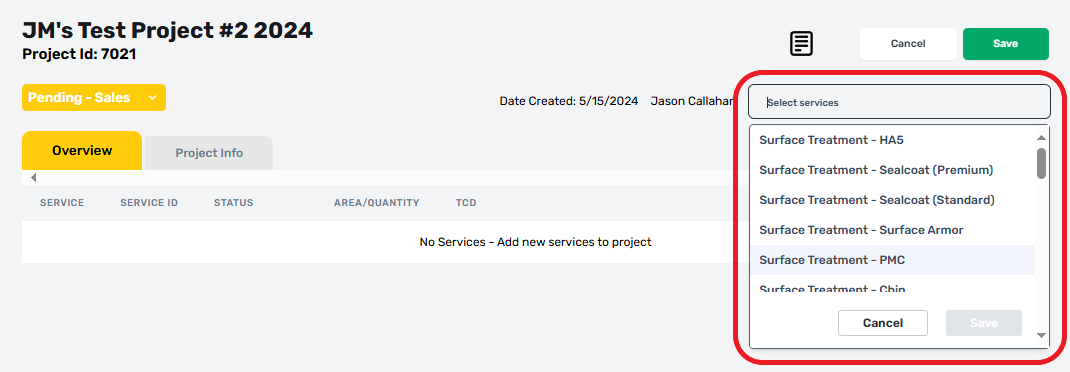
View the Services Drop Down
This will open a drop-down menu containing all available services. This drop down is searchable if the exact service is not immediately visible but is arranged so that key services are always at the top. This menu will accept multiple selections, allowing any number of services to be added at the same time.
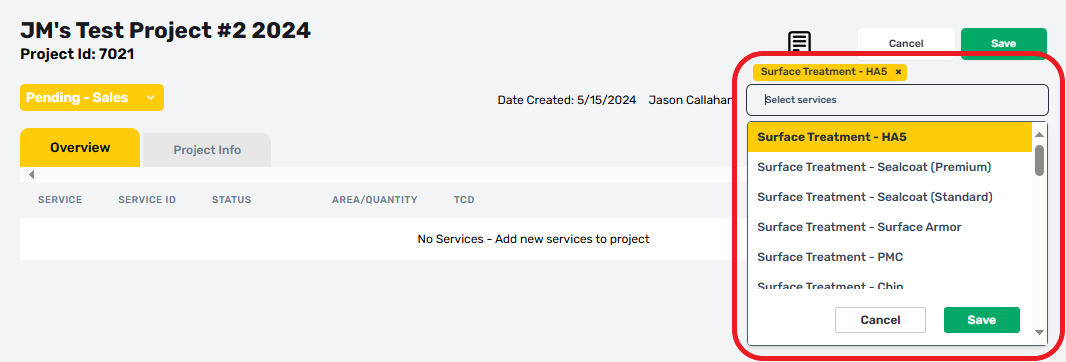
Choose Your Service
In this example, the “Surface Treatment - HA5” service is selected, but this process is the same for any service. Once selected, active services are highlighted in yellow, and a matching pill will appear at the top of the drop down.
Remove Mistakes
In the event a wrong service is selected, it can be removed by selecting the service again, or by selecting its matching pill at the top.

Create & the Service Tab
This example creates an HA5 service tab, but the process works the same for any service listed in the dropdown.

Removing Services
It is occasionally necessary to delete a service after it has been added to a project. This may be the result of a mistake, or sudden change to the proposal after it was signed. Services can be removed only so long as no work orders have been created within them.
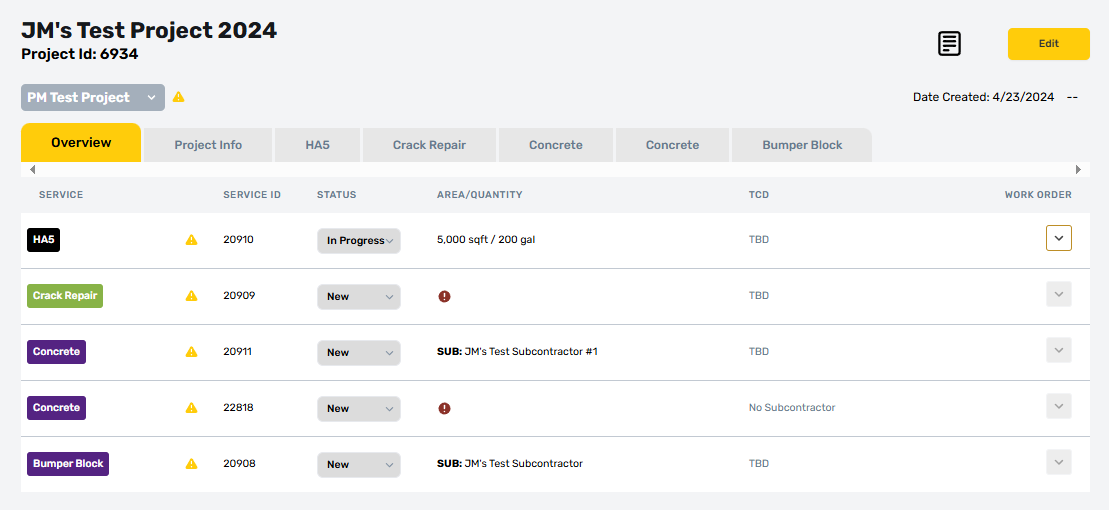
In this scenario, we have a project with two Concrete services. Only a single service is required, so we need to remove one.

Select The Edit Button
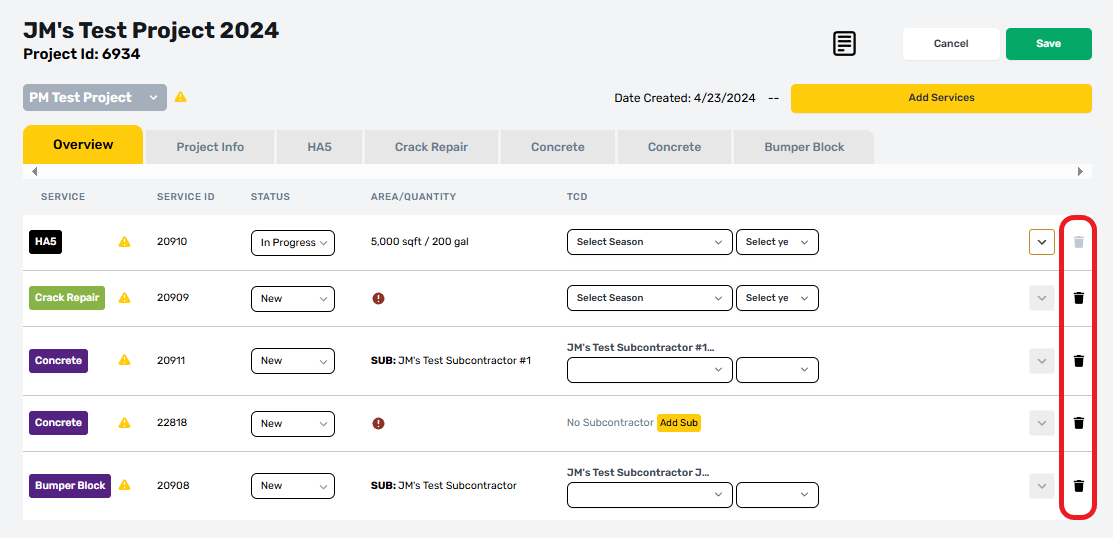
Service deletion can only be done from edit mode. Select the edit button and the report will shift to accommodate delete icons at the far-right hand side.

Users that lack delete permissions will not see delete icons, even if they have access to the edit mode.
Inspect Services
When duplicates occur, there may be differences between the individual instances. In this case, a duplicate was created after the original had some work done. The lower service has no information defined, while the upper one has a Subcontractor.
.png)
There may be additional differences within the service, requiring users to open and view the service sub-tabs. Details about these sub-tabs will be covered separately in later articles.
Select the Delete Icon
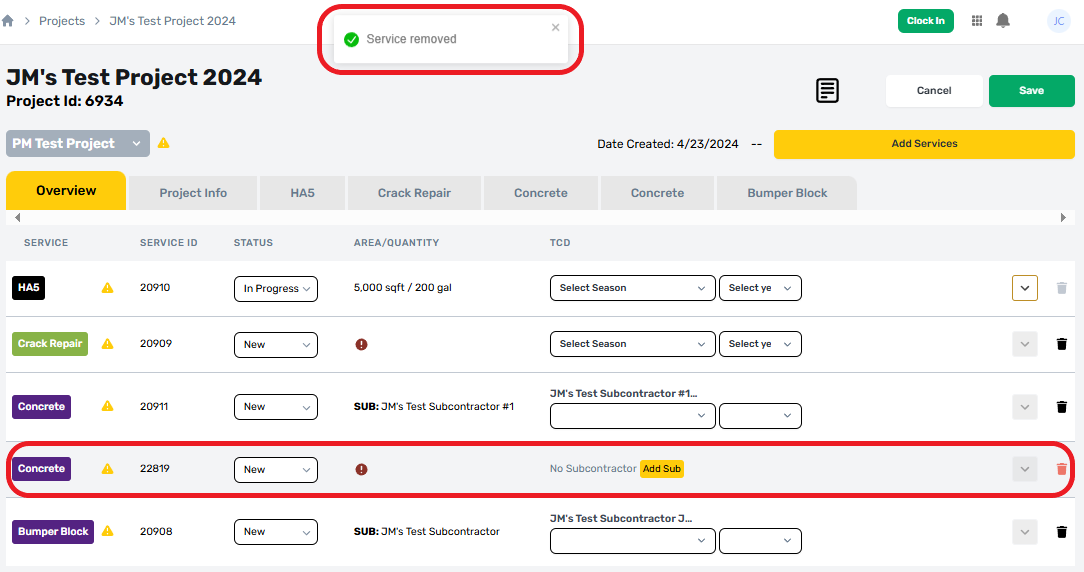
Since the lower service is less advanced, it can be deleted. Services can be deleted by selecting their delete icon.

Delete icons will show a dark coloration if they are active and available. If a delete request is successful, the system will display a notification at the top center of the page.
Issues Preventing Deletion
Delete icons will appear grayed out if the related service cannot be deleted. These services may have work orders, status, or other constraints that prevent removal from a project. In these cases, contact a system administrator if the project must be removed for any reason.
