Intro
Module filters allow users to drill down to specific details or individual records. ProfitOps features a uniform design for its filter and search system inside each module, so an understanding of one module filter adapts quickly to all of them. This article will use the projects module as an example, but the working process is the same for all filters.
Filter Layout
Filter sets will have different options in different modules depending on what information is being handled, and which traits are available to screen. Each filter can be selected individually, or combined with others in the set, allowing very specific information to be retrieved without needing to know the name or URL of a Project.
Search In Filter
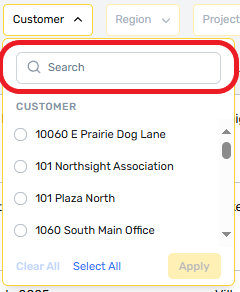
All filters that handle a large data set will allow users to search their contents. Filter search only looks at information from that filtered criterion, allowing for more focused results than a single shared search bar.
Filter Save
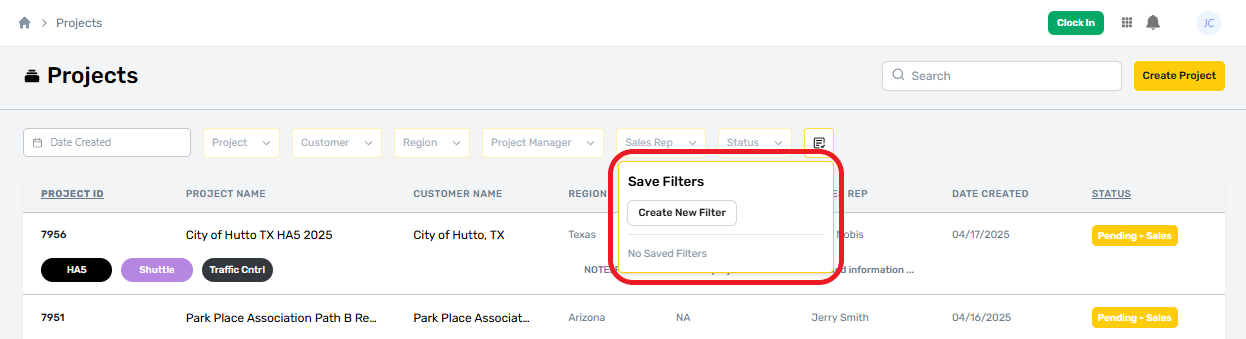
The filter save button appears at the far right of the set. This is the filter save menu, which allows users to name and save a specific filter set for easy re-use later on. Saved filters are stored within a user account, so they are available on any computer or mobile device regardless of browser settings.

Add New Saved Filter
When selected, users are shown a list of any filters they have saved previously, if any. In this example, no filters have been saved yet. To add a new filter, select the Create New Filter button.
Define The Filters
All filter pills will turn yellow to indicate that filter save mode is active. Select the filters to be included in the saved set.

Name Filter Set
Type in a unique name for the filter set. Each set must have a unique name and at least one filter defined before it can be saved.

Save the Filter Set
Once all requirements are met, the save button can be selected and the filter will appear in the saved list below.


View Saved Filters
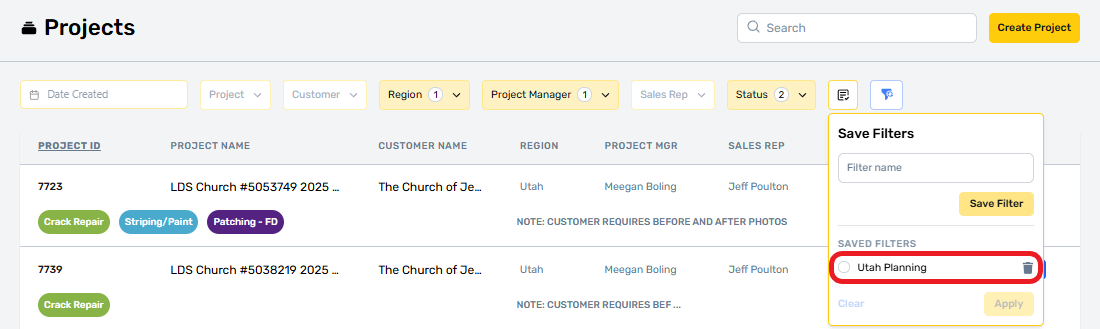
When successful, the saved filter will appear below and can be selected whenever its needed. Only one saved filter may be active at a time, but any number of them can be saved as needed.
Delete Saved Filters
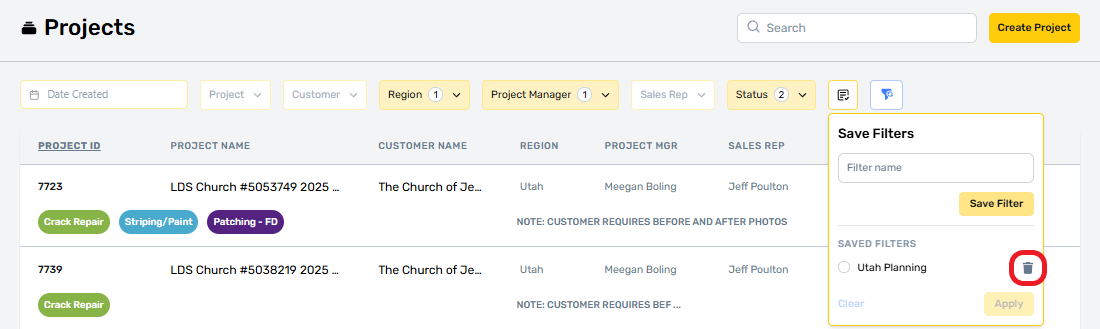
Any saved filter can be deleted be selecting the delete icon. This action cannot be reversed, deleted filters will need to be created and saved again.
Reset Filters
Active filters can be reset with a single click by selecting the filter reset button, located at the far right of a filter set next to the filter save button. This button only appears when filters are active and will disappear after use.


Load Saved Filters
In the future, when a saved filter is used, its same will appear at the far right of thee filter set. This helps indicate when saved filters are being used, or when the current filters are not saved. If changes are made to a saved filter set while in use, this label will disappear.
