Intro
New projects are created when Sales Rep begin researching and negotiating work with a customer. These projects can be created as soon as needed by the Rep, allowing information to be recorded as it becomes available. When these projects fulfill specific requirements, they can be submitted to a Project Manager for review and approval.
.png)
Create A Project
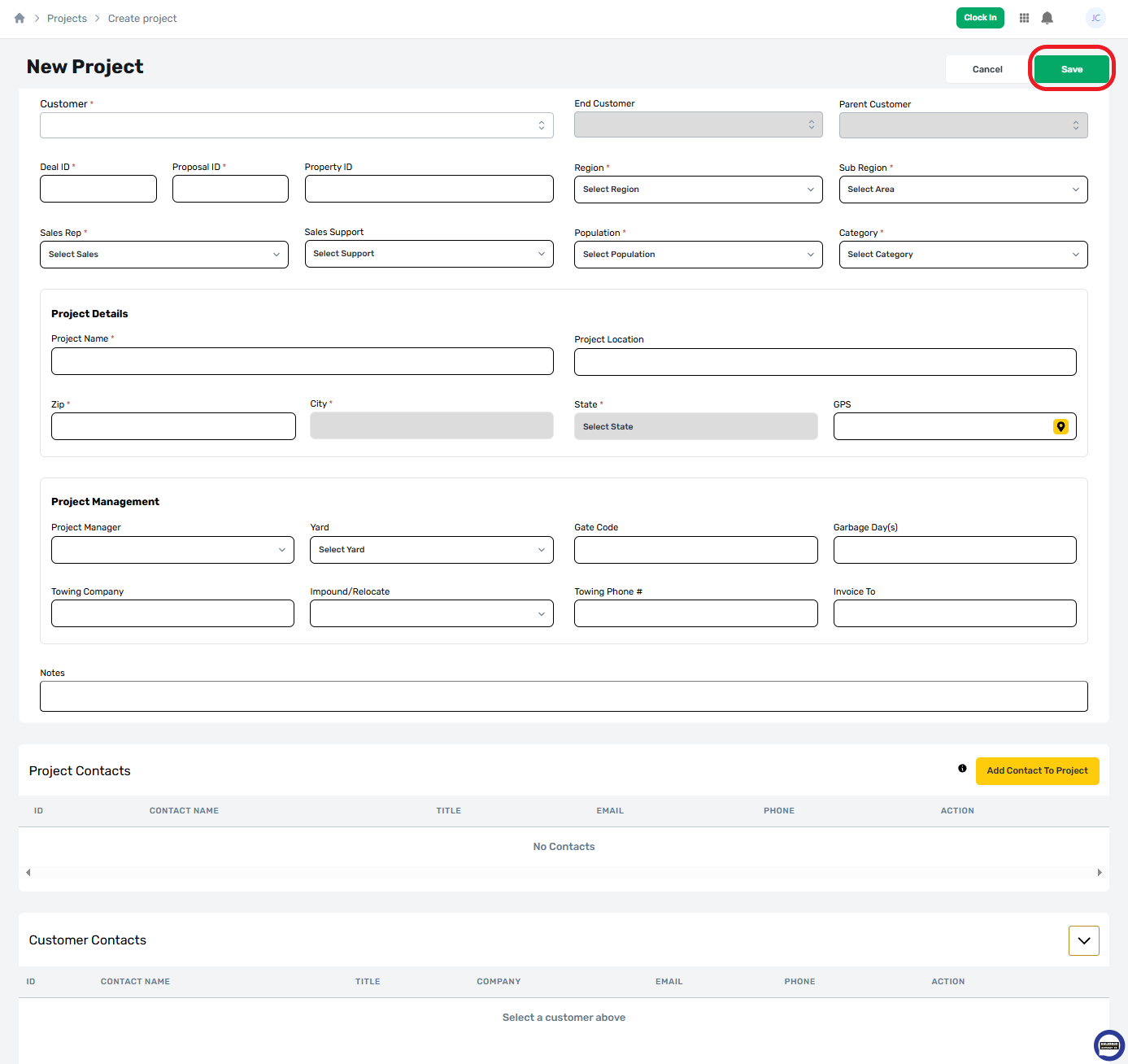
To create a new Project, select the “Create Project” button located at the top right of the project Module view.

New Project Form
This will display the “New Project” form, which requires certain fields to be provided before a new project can be created.
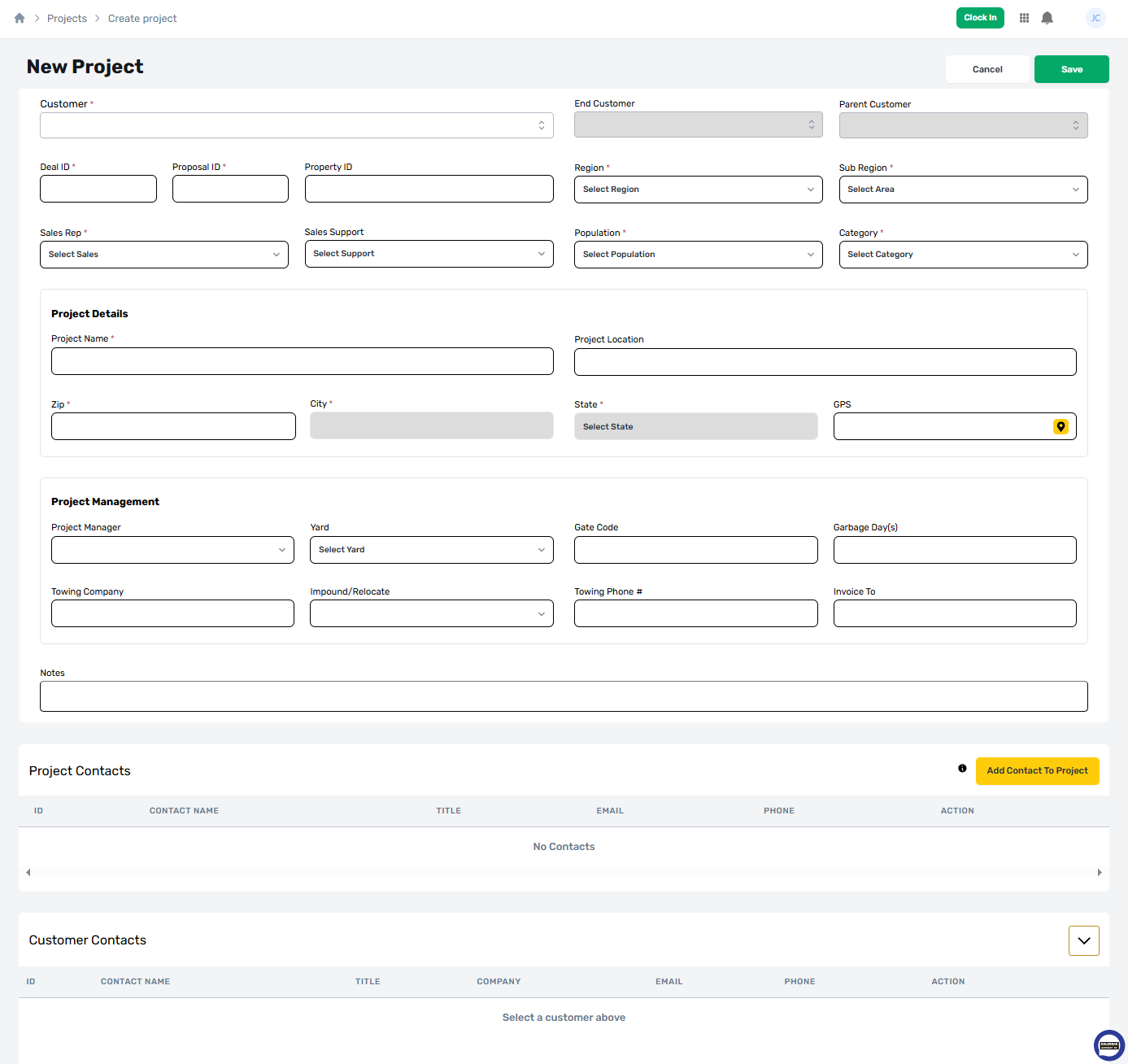
Required Fields
Fields marked with a red asterisk (*) are required to create a project. Sales Reps have primary responsibility to acquire and provide these details.
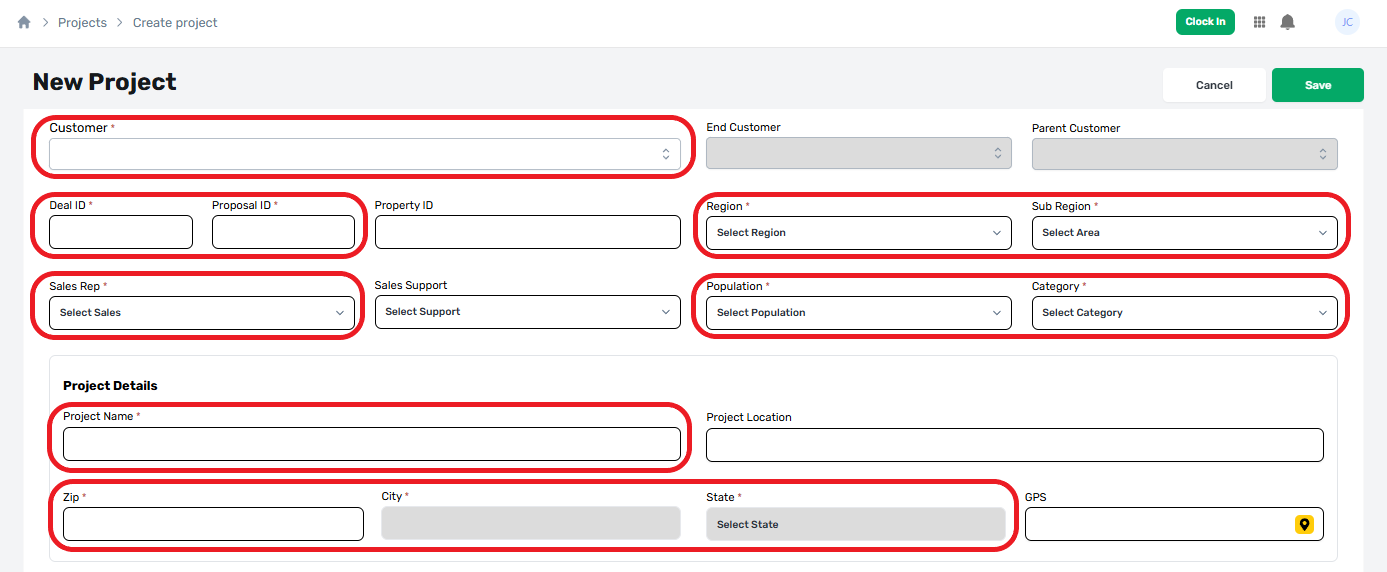
Project Manager Fields
The project manager fields on this form are not required and can be ignored by Sales Reps at this phase of planning. If this information is known, it may be provided in coordination with a project manager.

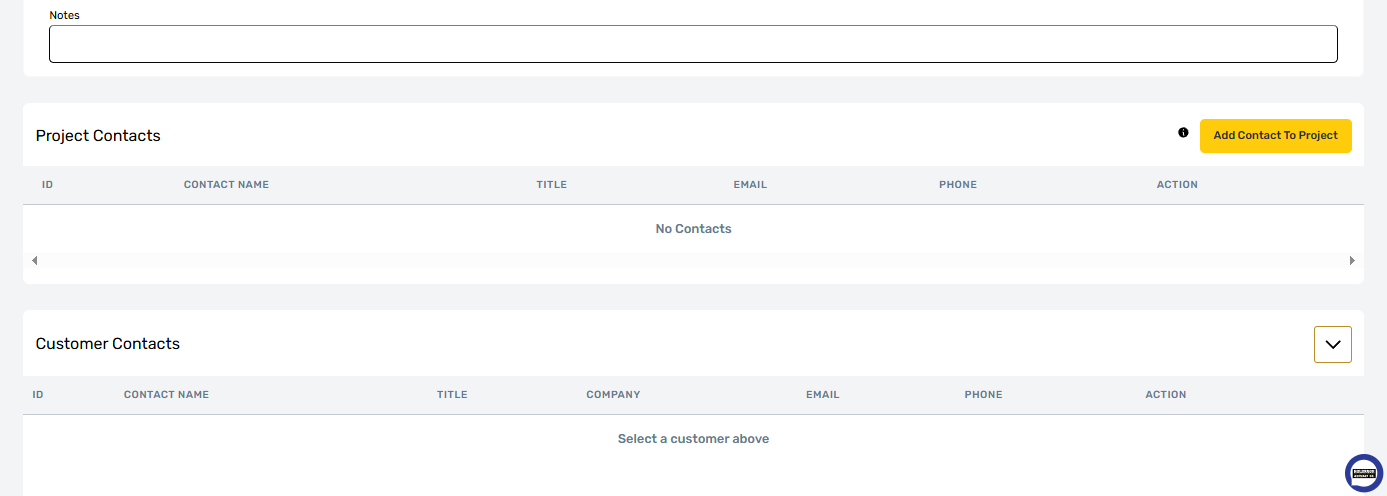
Notes & Contacts
The bottom sections contain a Project Notes field, Project Contacts, and Customer Contacts. These sections are optional during new project creation but can be filled in if they are already known. Details regarding theses sections are included below in the Description of Form Fields.
Description of Form Fields
A description of this form's fields are provided below. These fields can be one of three general categories:
(Required) if they must be answered to save the form, weather editing or creating new.
(Optional) are not required to save the form but may be required to receive approval or enable some functionality.
(Dependent) if a field's data is provided or derived from interaction with another part of the form. These fields cannot be directly filled out by the user but will respond to certain actions.
(Blocker) if a field is not currently required, but which will be required to meet specific status conditions.
(Toggle) when a field provides a binary choice with a default that can be changed.
General Project Information
Project information fields are located in the top section of the form. These fields provide general information about the project which are essential for planning.
.png)
Customer (Required)
The Customer field indicates the person or entity that is requesting services. Customers are the primary point of interaction by the Sales Rep and are responsible for defining and signing the project proposal. This field is a searchable drop down that will only display customers listed in the customer module.

Be Aware
If a desired customer is not shown, they need to be added or activated in the customer module first. You can find information on how to do this at [article not written yet].
End Customer (Dependent)
The end customer is the specific business, franchise, or subsidiary that is receiving a service. A common example would be a McDonalds that is being serviced at the request of its regional or corporate headquarters. This field is automatically filled based on the Customer selected.

Parent Customer (Dependent)
The parent customer is the specific business, franchise owner, headquarters, or property manager, that owns or manages an End Customer. These entities have ultimate responsibility to pay for services provided to an End Customer. Using the example above, this would be the regional or corporate office of a McDonalds that we are serving. This field is automatically filled based on the Customer selected.

Deal ID (Required)
[Need Info]

Proposal ID (Required)
[Need Info]

Property ID (Optional)
[Need Info]

Region (Required)
Regions are large scale geographic boundaries used to organize projects based on location. This is the largest organizational unit available in ProfitOps. Regions are defined in the Region module, available to administrators.

Sub-Region (Required)
Sub-Regions are medium scale geographic boundaries used to organize projects based on location. Each region can be divided into any number of sub-regions based on need. Sub-Regions are defined in the Region module, available to administrators.

Sales Rep (Required)
The Sales Rep is a main point of contact for Customers to communicate with. These individuals are responsible for building a project from negotiated requests made by a customer and collecting the related required information. This searchable drop down will only show users from the Employees module with the Sales Rep role.

Sales Support (Optional)
Sales Support roles are designated assistants to a Sales Rep. They are able to perform all the same functions as a Sales Rep, but act under the rep’s authority. This searchable drop down will only show users from the Employees module with the Sales Rep or Sales Support role.

Population (Required)
Population is a rough indicator of the average population density where a project takes place. This can be derived from zoning rules, or other data collected as a project is prepared for submission. This drop down features the following options:

ComlDense - Commercial Dense Area
Tightly packed or clustered commercial area with tight streets, compact parking lots, and difficult maneuvering for large trucks.
Typically, the downtown areas of medium or large cities.
ComlMod - Commercial Moderate Area
Loosely packed or clustered commercial area.
Medium sized parking lots and streets, with some technical maneuvering and size restrictions.
These are comply found around suburbs and small commercial or industrial parks.
ComlOpen - Commerical Open Area
Large factory or shopping malls.
Broad streets with easy maneuvering for semi tractors and large trucks.
Massive parking areas with long walking distances.
Typically, part of large commercial or industrial parks.
CondApt1Story - Condo/Apartment, One Story Tall
Any shared wall condo or apartment complex.
No residential structure in complex is over one story tall.
Can encompass multiple separate buildings or separate complexes in the same area.
Category (Required)
Category defines they type of area that this project will be providing services to; this drop down holds the following options:

Church - Any religious property, including meetinghouses, chapels, temples, or administrative offices.
HOA - Short for Homeowners Association, used when a project takes place under HOA authority.
School - Any educational building, including private schools or school administrative offices.
Commercial - Any commercial property, including strip malls, shopping centers or industrial parks.
Municipal - Any city or municipal government property, including parks, monuments or city administrative offices.
Internal Use Only - Used for projects servicing Holbrook or IPS facilities, and for testing applications.
Residential Driveway - Any private property projects affecting a personal residence.
DOT - Projects involving the Federal Department of Transportation, typically interstate shoulders or other DOT administered roadways.
Federal - Any federal government facility, including military bases, national parks, courthouses, or administrative offices.
State - Any state government facility, including state parks, monuments, administrative offices, or courthouses.
Project Details
Project details provide information about the physical location of the project in question. The sales rep or assistant are responsible to have this information before a new project can be created.
.png)
Project Name (Required)
The Project Name is a unique identifier for the project that will appear on all documents related to it.

Project Location (Required)
Project Location is the approximate location of the project. For projects encompassing a larger area, or multiple areas, use a physical or billing address for the customer, preferably at or near the project location.

Zip (Required)
Zip code is the standard mailing code for the project location. This information will automatically fill in the City and State fields next to it.

City and State (Dependent)
These fields are determined by the zip code provided.

GPS (Optional)
The GPS or Google Maps URL for the location of the project. This is used when the project location does not have an address, usually because its new construction or a remote location lacking a deliverable address.

Project Management
Project Management fields are optional to the Sales Rep or Sales Support roles but must be provided before a project can begin work. This information is usually provided by the Project Manager who approves it. The Sales Rep or Support roles may provide this information if they know it, but only in coordination with project management.
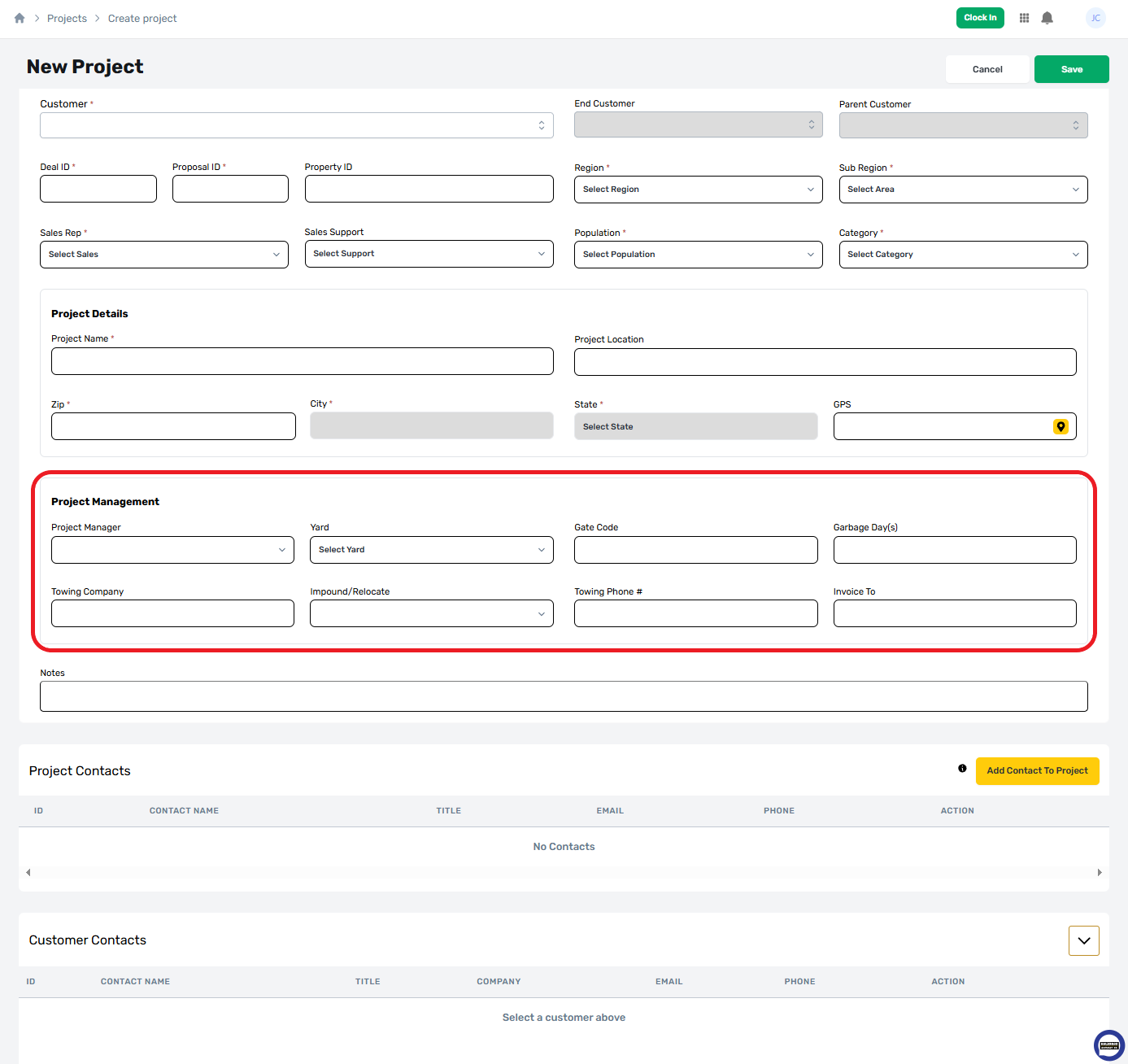
Project Manager (Optional)
The project manager is person responsible for administering the project. They work with the Sales Rep to ensure that projects are Completed As Scheduled according to the project proposal. This drop-down menu will only show users with the project manager role.

Yard (Optional)
Yards are logistical hubs where trucks, material, and equipment are stored for use on nearby projects. These are the smallest geographical area tracked by ProfitOps and are required to establish the region and sub-region.
This field determines which crew accounts are available to be assigned by Manpower Assign to associated work orders.

Gate Code (Optional)
The Cate Code is for access codes required to reach a project’s location. For projects requiring multiple gate codes, use the notes field below.

Garbage Day(s) (Optional)
Garbage Days are the assigned day that a project area receives municipal garbage service. Work orders that require a road closure may not be scheduled on these days of the week.

Towing Company (Optional)
The Towing Company is the designated tow provider for the contract. This might be assigned by the client or service location, but can be an authorized subcontractor if not.

Impound/Relocate (Optional)
The Impound/Relocate drop down selects the action that a towing company will use to handle vehicles left in the work area. Generally, cars towed will be sent to Impound, but some clients will have arrangements for towed property to be stored locally.

Towing Phone # (Optional)
The towing phone number is the primary contact number for the towing company dispatch or assigned driver. This number should be as direct as possible to ensure that work crews can quickly get support when needed.

Invoice To (Optional)
The Invoice To field is the person or entity responsible for handling any invoice generated by towing services.
This document is created by a Sales Rep during negotiation and is the foundation for a legally binding contract that protects all work performed on behalf of a customer. Project services should only be created as defined on the proposal document. The Sales Rep is responsible to ensure that this data is accurate and complete.

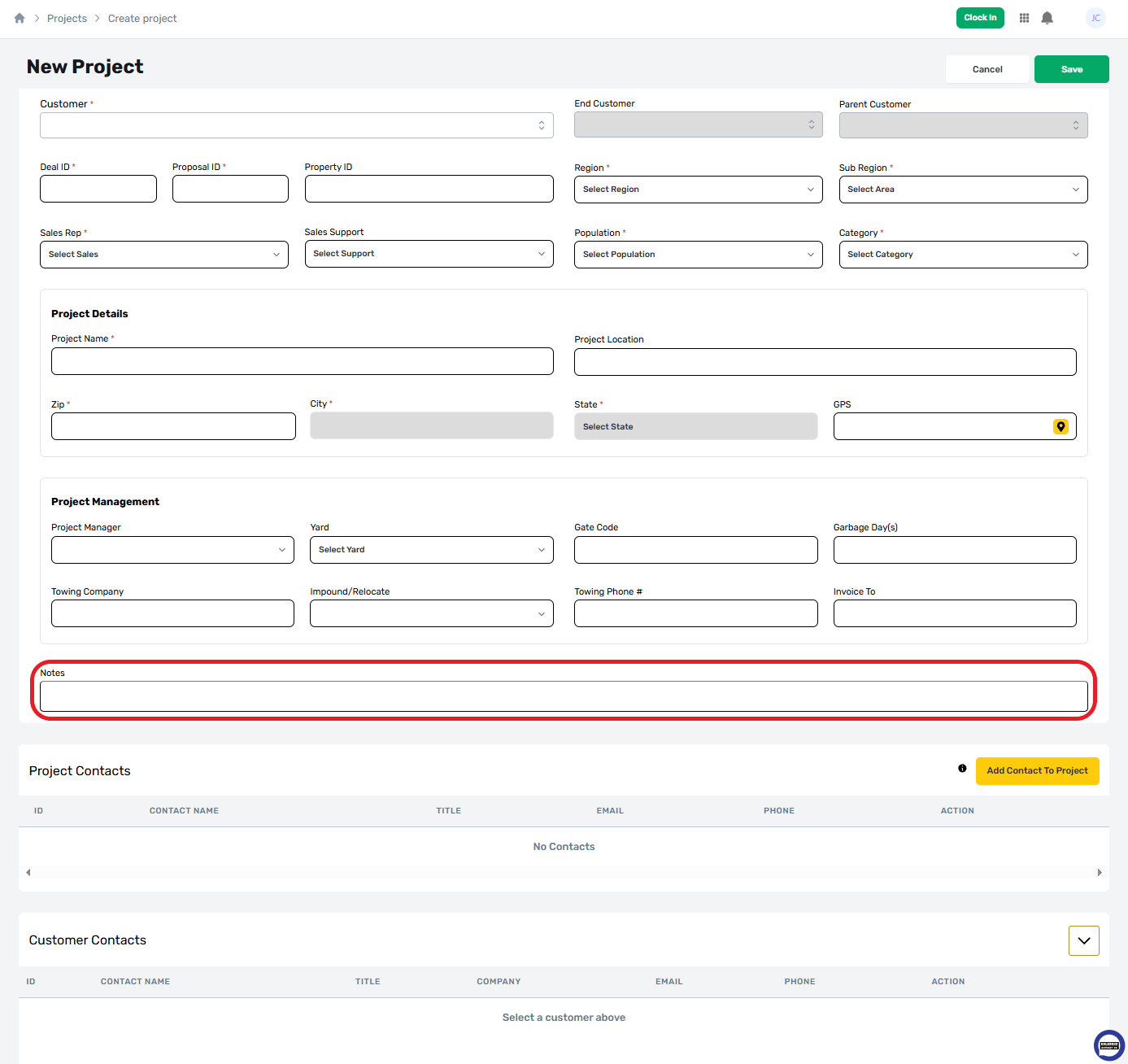
Project Notes (Optional)
Project Notes are applicable to all services and visible to any user with project access. These are for special instructions or information that all users on the project should know during their planning and execution of assigned services and work orders.
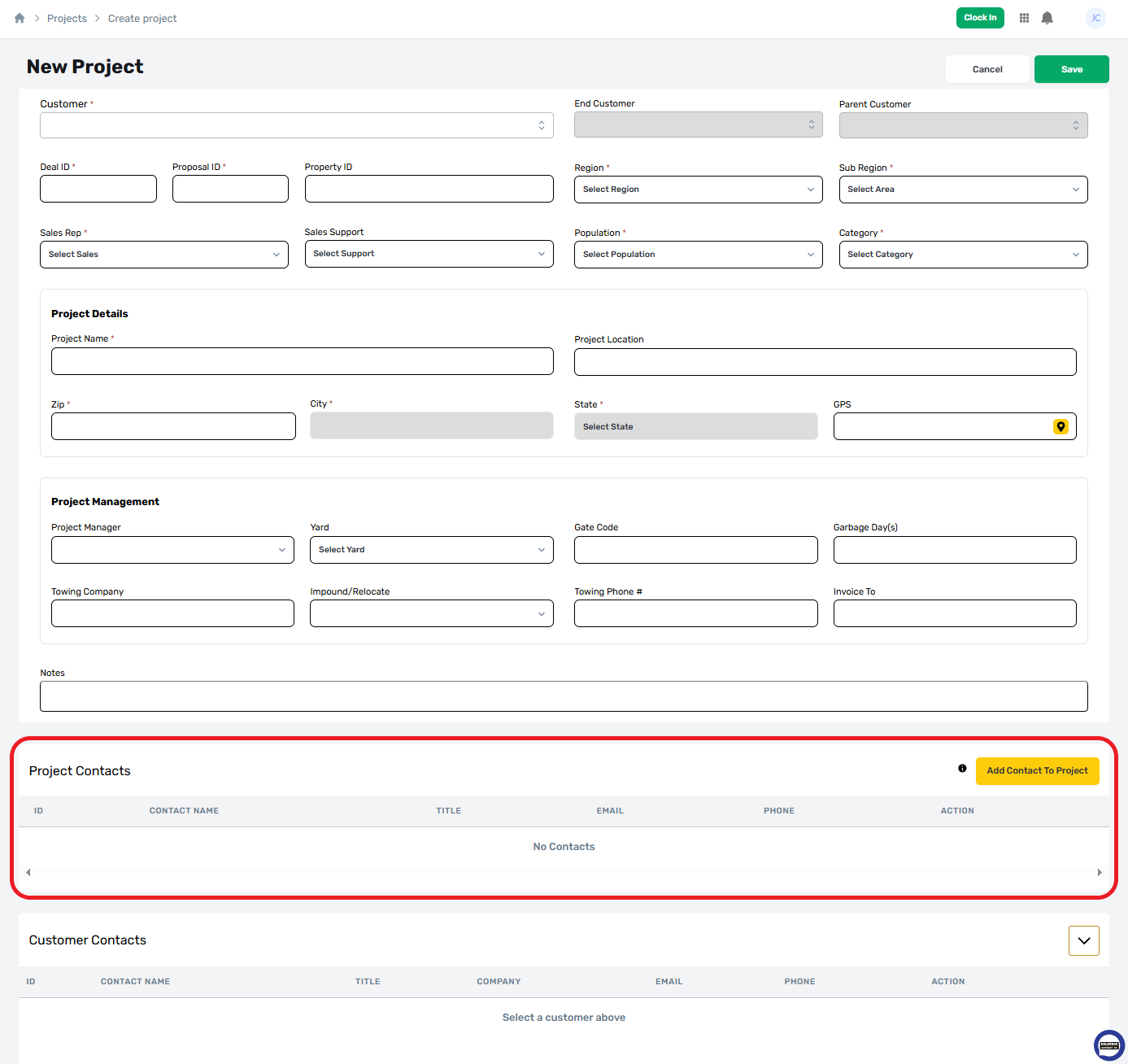
Project Contacts (Optional)
The Project Contacts form shows persons relevant to the project that can be contacted for issues or questions. These contacts can only be added from the Customer Contacts form below.
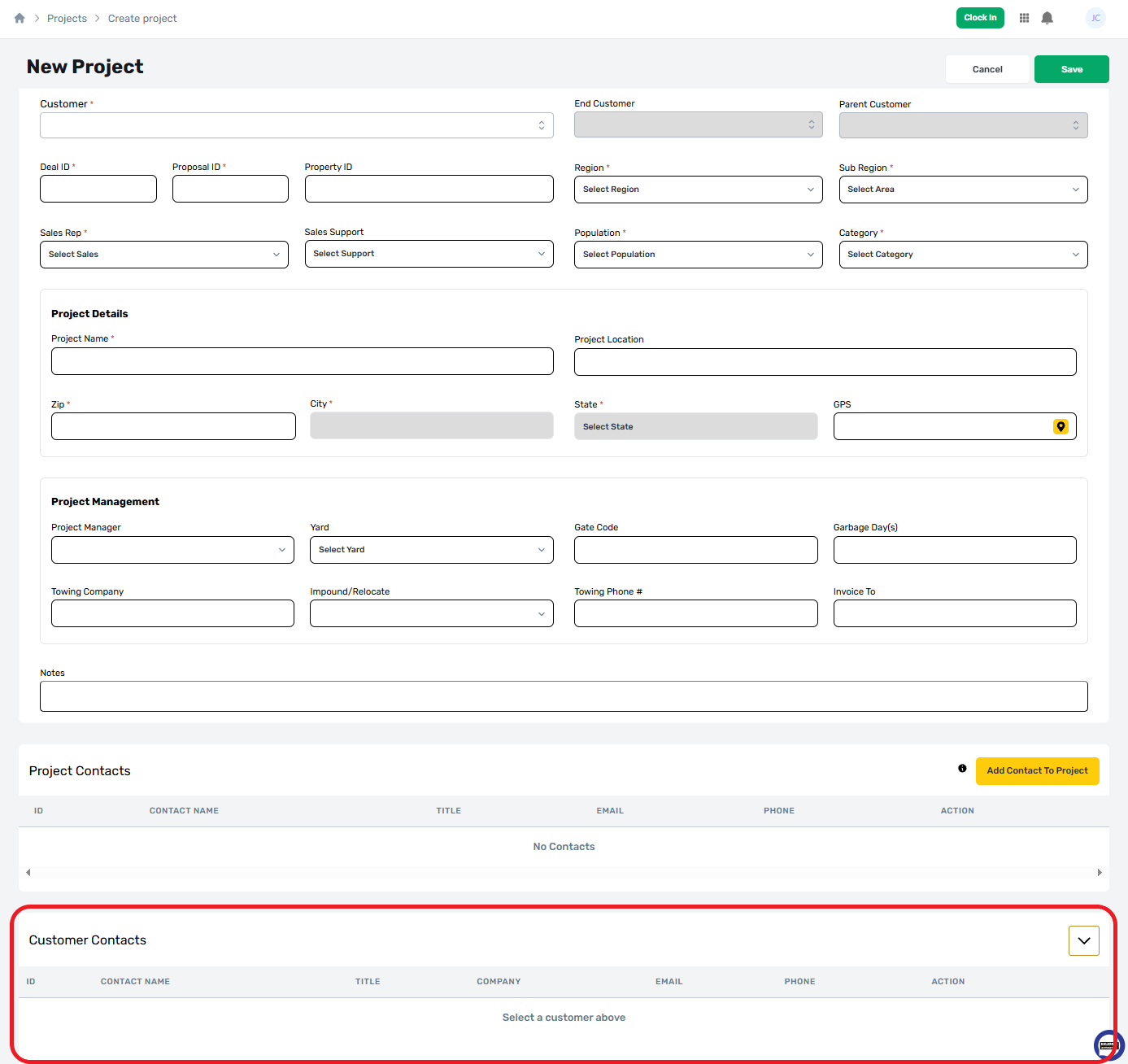
Customer Contacts (Optional)
The customer contacts form contains a complete list of all contacts affiliated with the Customer, including contacts from a related prime contractor or management company. This information populates based on the customer provided at the top of the New Project form.
Be Aware
Only active contacts will appear on this list. If a contact does not appear, it must be activated or created from the Contacts module.
Save To Create
Once all required fields have been provided, select save to create a new project. All newly generated projects will be assigned the “Pending - Sales” status, these projects are accessible to the Sales Rep who created them. Project Managers can view these projects but are restricted from making changes until the Sales Rep is ready to submit them. This process will be covered separately.