Prerequisite Content Recommended
This article assumes you are familiar with the Schedule Module Overview. Read that article before reading this one for the best experience.
Intro
Clock management in Pops requires users to log their hours to a work order. This ensures that users can only clock in when they have been assigned a task to complete. Weather performing office work, or field operations, each of these tasks is affiliated with some type of work order.
Work Order Colors
Each Service is represented by a specific color, which is consistent across the whole system. These colors help differentiate work orders in the schedule and prevent mistakes.
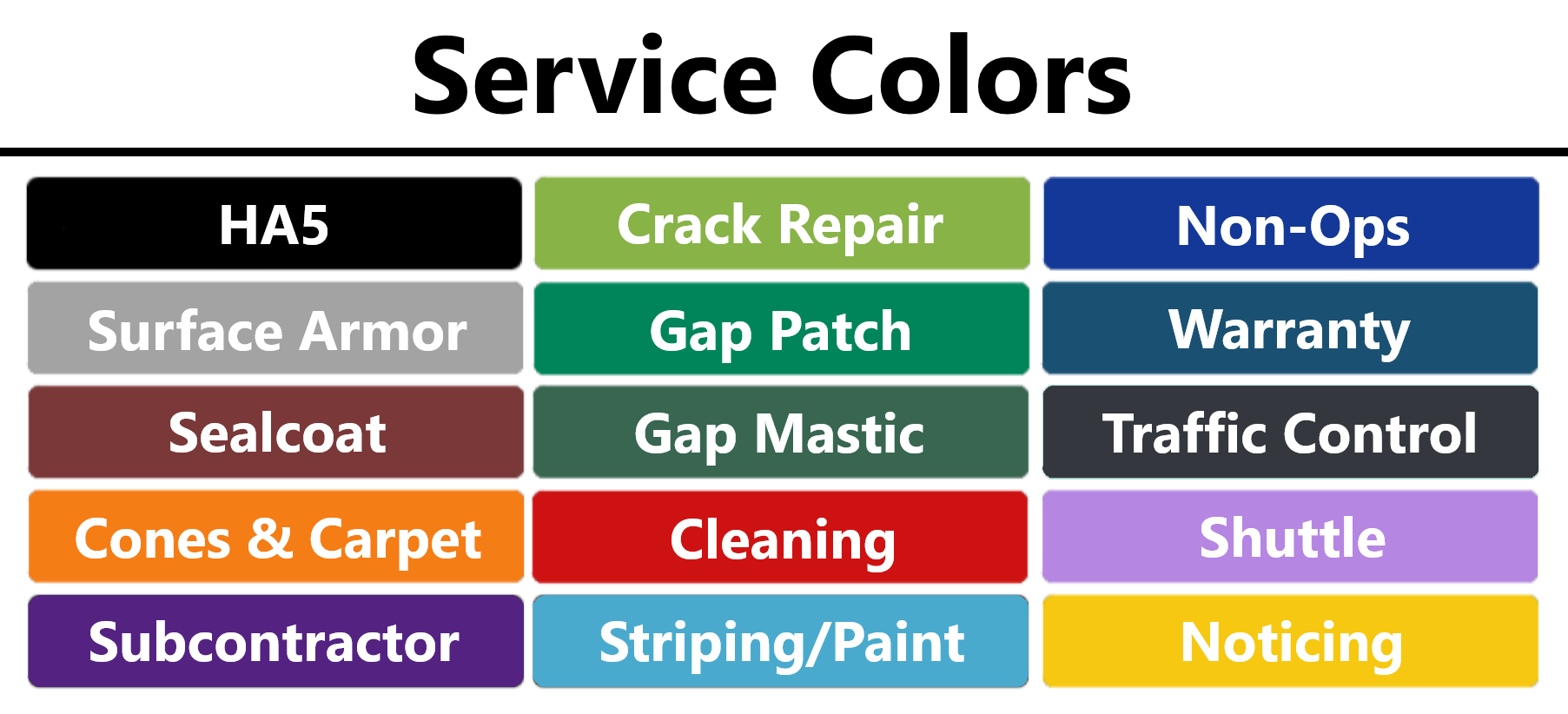 Additional details about work order containers and the information they display are covered separately.
Work Order Clock In
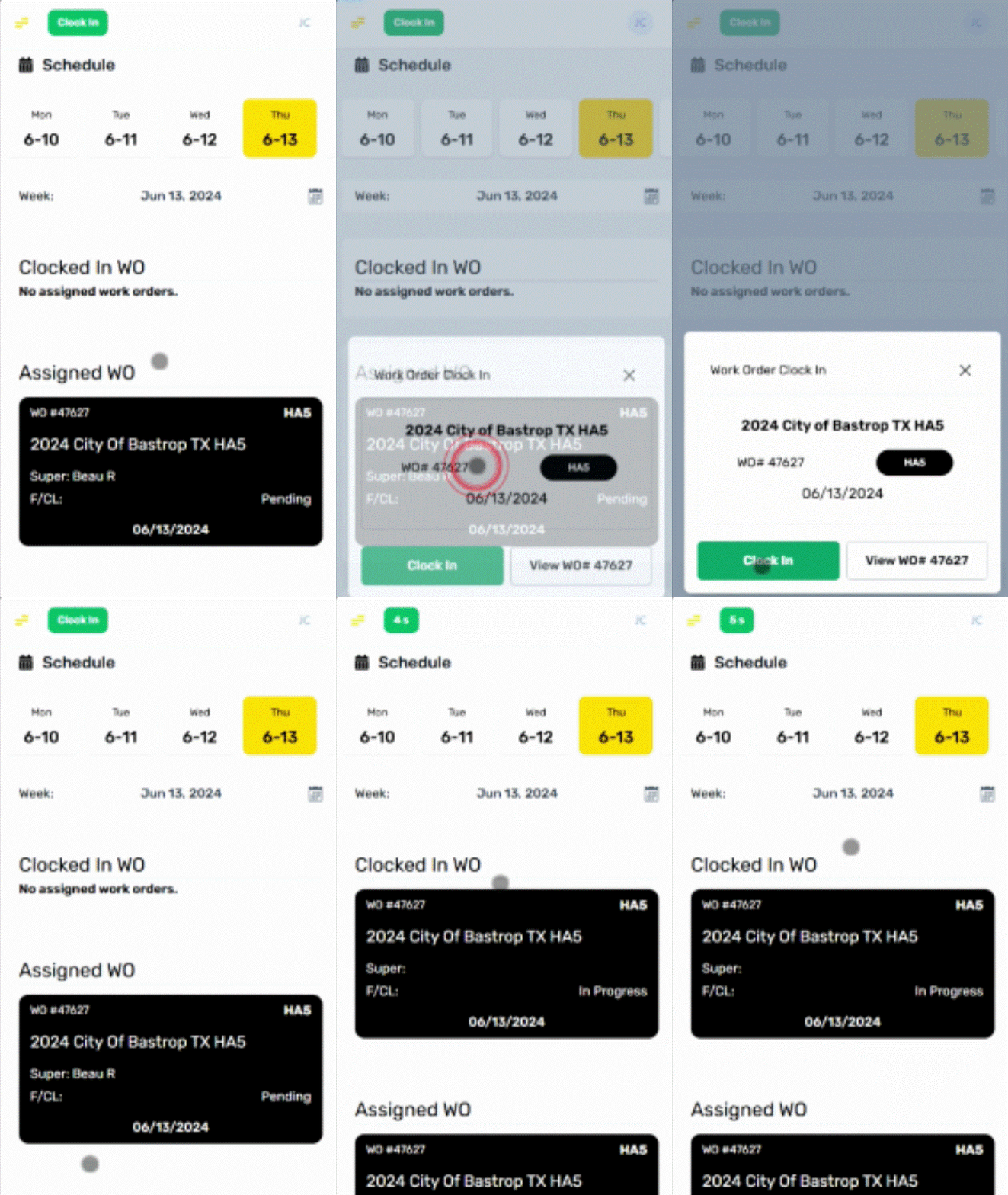
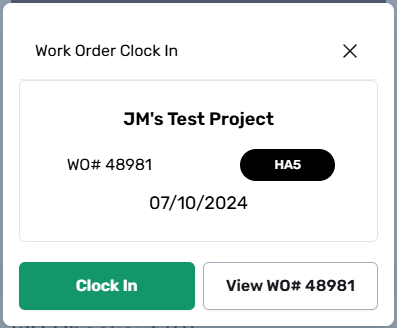
To clock into a specific Work Order, users must select it from one of the available sections shown on the Schedule Module. When selected, the user will be presented with a menu showing additional information about that Work Order, with an option to “View” the Work Order directly without logging time, or “Clock In” and start recording time.
Non-Ops Work Orders
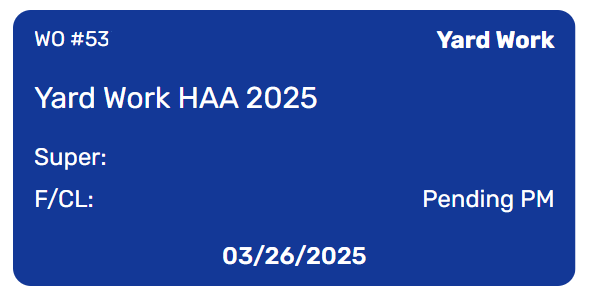
All work orders colored blue are non-operations, these special work orders will only appear on a schedule after they have been selected from the clock pill menu. Non-operations work orders are used when a task can’t be directly billed to a customer but is still necessary to support thy day’s work.
Non-Ops Clock In
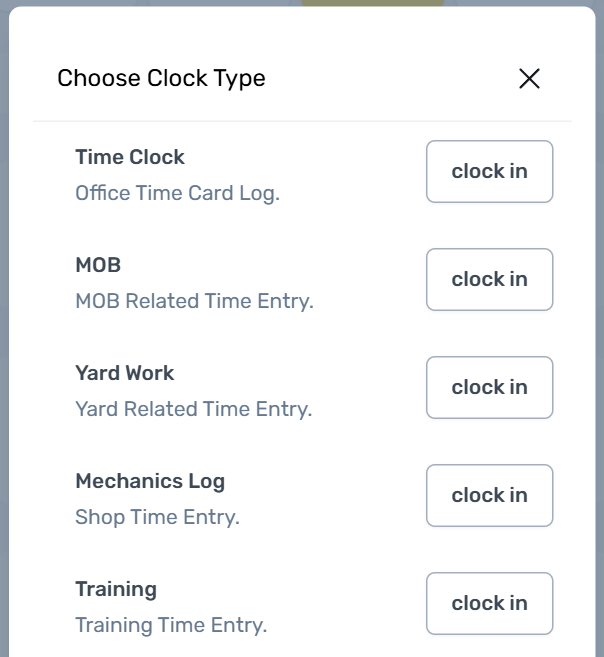
To access a non-operations work order, users must be clocked out. Select the clock pill and a list of non-ops work orders will appear.

Non-Ops Menu
The content of this list will vary based on the permission of a user, but will generally allow things like Yard Work, Safety Meeting, or Training. Do not access these work orders unless directed by a supervisor.
Cones & Carpet Section
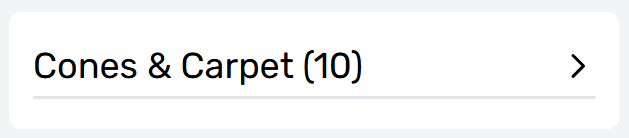
A Cones & Carpet, or C&C work order is a support service held in a separate section of the Schedule Module towards the bottom of the page. This section is available to all users with schedule module access but will only show C&C work orders related to the current day.
What Are Cones & Carpet?
These work orders are a supporting service that relates to a specific surface treatment work order, typically HA5. These work orders are specifically used when closing or opening a road separately from a surface treatment, they handle the application of traffic cones and protective carpet.
.png)
C&C Relation
Cones & Carpet work orders will share the same Project name and scheduled date as their related service but are accessible the day after a related service. This allows for traffic cones and carpet to be collected after a surface treatment is completed by a different Crew.
.png)
View A Work Order
To view a work order without clocking in, select it on the schedule view, and then choose the "View WO" button shown on the bottom right of the Clock In menu. This allows users to read details, complete tasks, or modify information without clocking into the work order. Any work order can be viewed regardless of where time is currently being recorded.
The different Work Order Tabs that compose a work order are covered separately.
Missing Work Orders
In the event a known work order does not appear as needed, contact a Foreman or Super. They can assign users a missing work order so that it appears correctly on the Schedule page.
ALWAYS use the CORRECT Work Order
Do not clock into a different work order, or a Yard Work order, unless specifically directed to do so. Users will have the ability to make corrections to their time during the clock out process. It is better to stay clocked out until the right work order is available and then enter the correct times during clock out.
Switching Work Orders
While clocked into a work order, you can select and clock into another work order by choosing it from the assigned WO section. When you do this, you will be required to clock out from the current work order before clocking into the next one.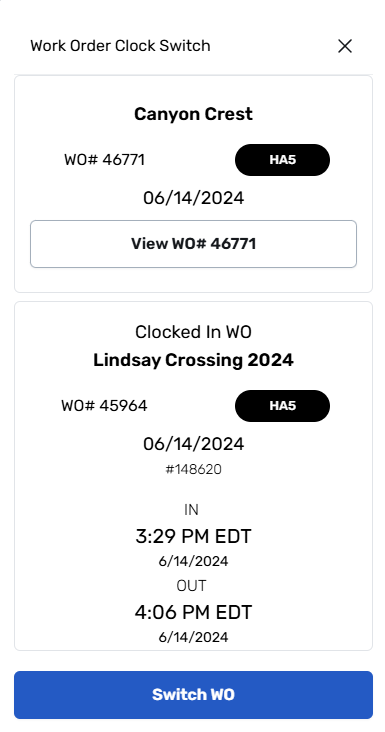
Work Order Clock Out
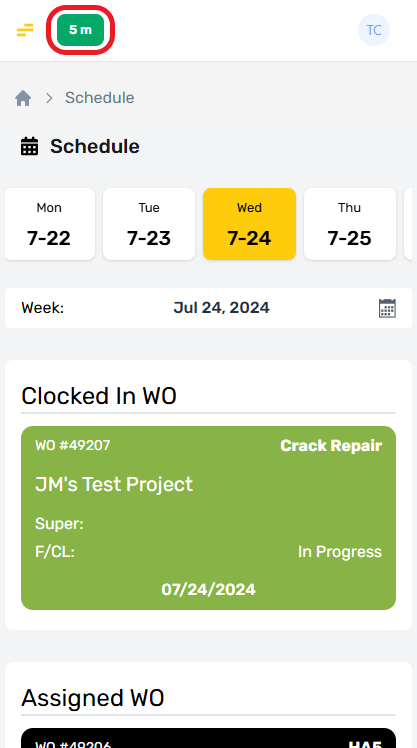
To clock out of any Work Order, users can select the clock timer at the top left of their screen. This will display the clock out menu.
Clock Out Menu
All users clocking out are presented with two options, they can confirm their time is “Correct” or if their time is not correct, they can “Edit” and make corrections.
The goal of this menu is to allow the user to make corrections to their own time as needed. This lets the Foreman, Super, and TimeCard Administrator review these corrections without needing to make the edits themselves.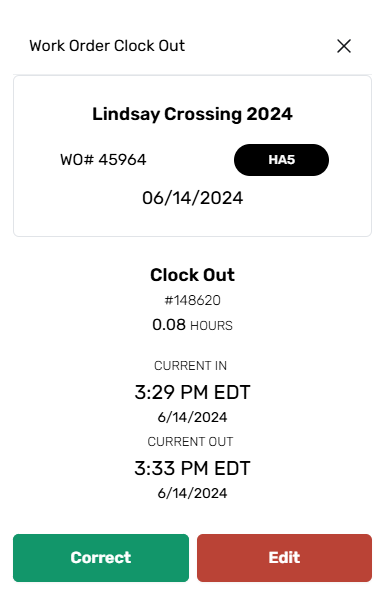
Time “Correct”
Selecting "Correct" will log the information shown above to the labor tab on the Work Order, where it will be reviewed by the Foreman and Super before being approved. If this information is not correct for any reason, select the "Edit" button to change the entry.
All users are responsible to ensure that labor records are accurate.

Time "Edit"
To correct an entry, select the "Edit" button to open the Time Correction Menu.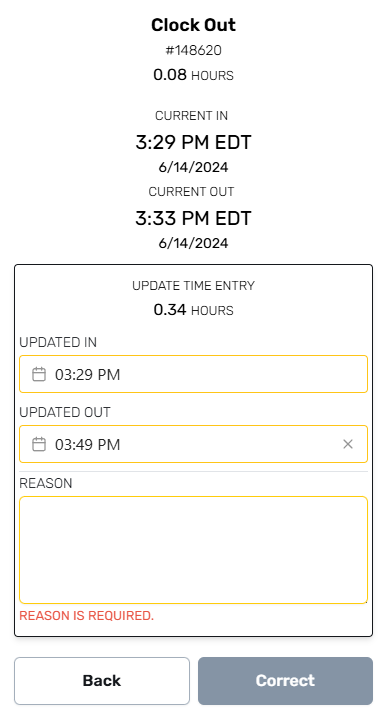
“Edit” Menu Layout
This menu provides time selectors for the Clock In (Updated In) and Clock Out (Updated Out) records, along with a "Reason" field for notes describing why a correction was required. An explanation is required for any changes made to a Time Entry.
Be Accurate
It's important to clock in and out on time whenever possible so that corrections are minimized. If a Time Entry is corrected for negligence; it can affect the Performance score for that person.

Time Issues & Support
In the event that you find an issue with your Labor Record after a work order has been closed, be sure to contact the TimeCard Administrator so that problems can be investigated and resolved. Issues that remain unresolved until after payroll is posted will require significant additional scrutiny, this takes extra time and more effort than if they are reported quickly.
Check Your Times Daily
Remember to check the TimeCard Module daily to help identify issues before payroll is disbursed. The longer you wait, the more complicated and expensive it becomes to fix an issue.